

Connect Booking.com
Add the connectivity provider in your extranet, enter your Hotel ID, map your rooms, and Santara AI activates the channel for you.
Booking.com works differently from Airbnb: there is no login popup. You give Booking.com permission in your own extranet, then tell Santara AI which property to attach to.
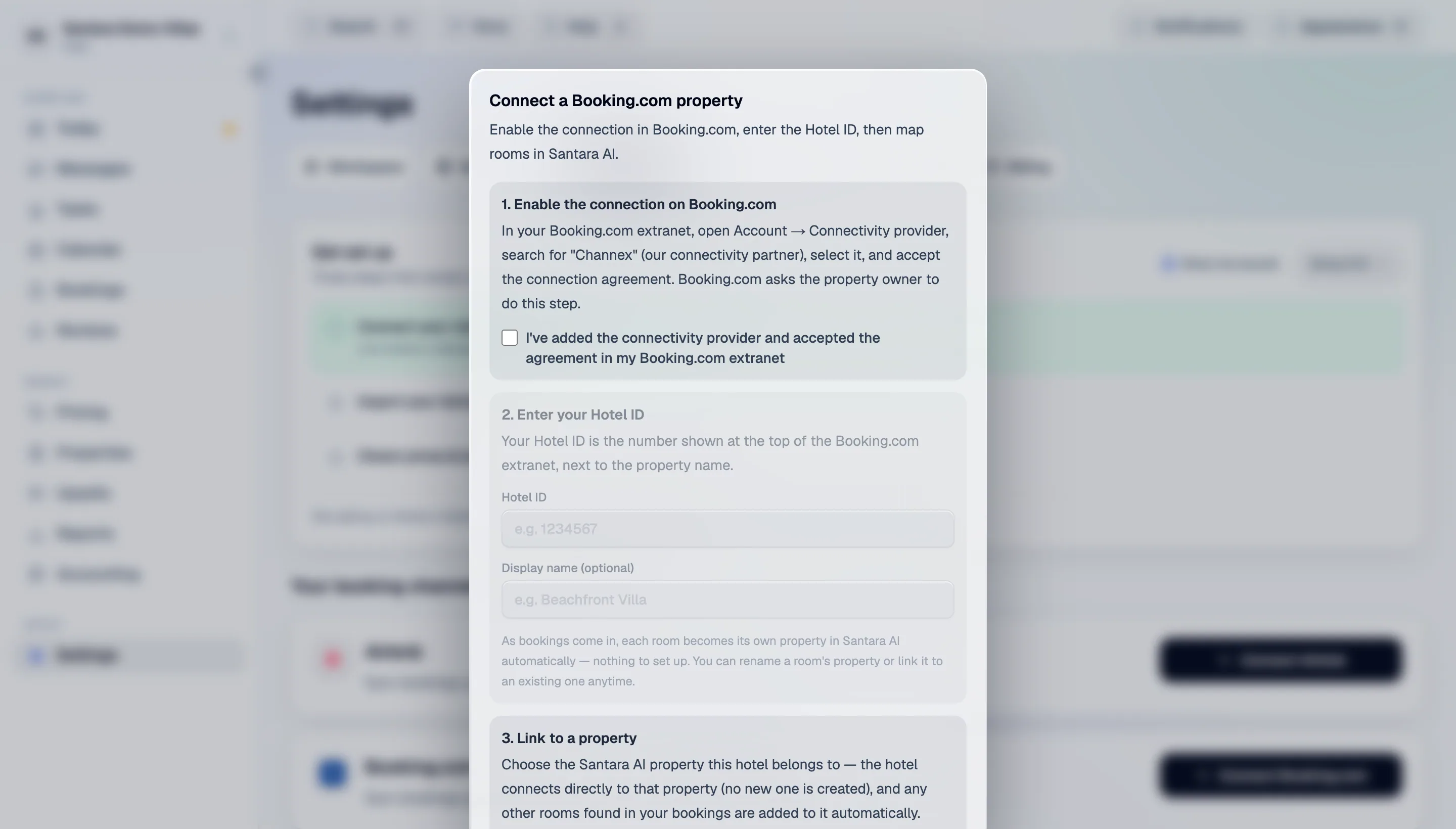
1. Enable the connection in your extranet
Section titled “1. Enable the connection in your extranet”In the Booking.com extranet:
- Open Account → Connectivity provider.
- Search for the connectivity provider named in Santara AI’s Booking.com connect dialog.
- Select it and accept the connection agreement.
Nothing happens in Santara AI until this is done. The connect dialog has a checkbox confirming you have done it, and it is there because skipping this step is the single most common reason a Booking.com connection fails.
2. Enter your Hotel ID
Section titled “2. Enter your Hotel ID”Settings → Channels → Connect Booking.com.
Your Hotel ID is the number shown at the top of the extranet, beside the property name — for
example 1234567. Optionally give the connection a display name.
3. Link it to a property
Section titled “3. Link it to a property”Choose the Santara AI property this hotel belongs to. The hotel connects directly to that property — no new one is created — and any other rooms found in your extranet are added to it as they are discovered.
No properties yet? Choose New property — created from this hotel, and it is created for you. If the property is already on Airbnb, it is marked already on Airbnb — that is fine and expected; one property sells on both.
Press Connect property. Unlike Airbnb, this happens immediately — there is no window to wait on.
4. Map your rooms
Section titled “4. Map your rooms”Santara AI asks Booking.com for the rooms on that hotel and shows them under Your rooms. For each one, pick the Santara AI room it is.
If nothing appears, press Find my rooms again, or use Connect a room to a property yourself and enter them by hand from the extranet’s Property → Rooms & rates page:
- Room name — for example Standard Double Room
- Room ID — for example
437213702 - Rate ID(s) — for example
25014098, 25014104 - Guests — how many the room sleeps
Then press Map, activate & sync. Santara AI maps the rooms, activates the channel, and syncs bookings, reviews and messages, showing each stage as it goes.
What can hold a room back
Section titled “What can hold a room back”| On screen | Meaning |
|---|---|
| Linked — not mapped yet | Booking.com knows the room; it points at no Santara AI room |
| Mapped — awaiting activation | Mapped, but the channel has not activated. Bookings sync after activation succeeds |
| stayed linked but not mapped — its rate plan doesn’t price a guest count Booking.com accepts | The room’s rate plan has no price for an occupancy Booking.com requires. Open the room’s rate plan, price the occupancy, and map it again |
| No rooms found yet | Check the Hotel ID and that the connectivity provider was accepted, then refresh |
Santara AI will not guess an occupancy price on a live listing. That refusal is deliberate: a guessed price on Booking.com sells real nights at the wrong rate.
Rates on Booking.com
Section titled “Rates on Booking.com”Booking.com does not expose your rates to a connectivity provider in a way that can be read back. Prices you set in Santara AI are pushed out to Booking.com; nothing is imported in. Set your prices here (or with pricing rules) and treat Santara AI as the source of truth.
Changing or removing
Section titled “Changing or removing”- Change property — future reservations and messages land on the property you pick. Everything already imported stays where it is and your room mappings are kept.
- Remove from Santara AI on one room — removes its imported data here only.
- Disconnect — stops syncing and removes this property’s imported Booking.com data. Your extranet is untouched. You can reconnect the same Hotel ID later.
For AI tools: this page as markdown · llms.txt · llms-full.txt