

The Santi app
Santi at santi.santara.ai — talk or type on your phone, connect your Santara AI workspace, and approve every change twice.
santi.santara.ai is Santi’s own app, made for your phone. It is the same Santi that sits beside the bell in the dashboard (Ask Santi), with the same Santara AI account behind it — but you can talk to it, it remembers what you tell it, and it can do more for you, always after you approve.
It runs in the browser. On a phone you can add it to your home screen and open it like an app.
Open Santi: santi.santara.ai · Meet Santi and the crew first: santara.ai/santi
Getting in
Section titled “Getting in”Santi is invite-only for now. Ask the Santara AI team for an invite — the link is tied to your Santara AI email and lasts 14 days. Open it, then:
- Continue with Santara AI — you sign in on Santara AI, so Santi never sees your password.
- Pick your workspace and press Allow.
- Santi is ready.
If you are already signed in to Santara AI in the same browser, Santi signs you in without asking. You stay signed in for 60 days. From the menu, Add a passkey (one-tap sign-in) lets you come back with Face ID or your fingerprint instead.
Before signing in you can try Santi on a made-up business, Bali Villa Co — ask anything. Nothing you do in the demo touches a real account. Every picture on this page was taken in that demo.
What the connection allows
Section titled “What the connection allows”The consent screen lists exactly what Santi gets: see your business (bookings, guests, calendar, prices, messages, cleaning), do work for you — only after you confirm, twice, in the app — and your name and email to sign you in. Anything your role in the workspace does not allow is struck through and skipped.
Whatever you allow, Santi can never: change billing or your plan, change workspace settings, connect or disconnect channels, or delete properties or rooms.
Connecting from Santara AI instead
Section titled “Connecting from Santara AI instead”In the dashboard, Settings → Channels has a Santi card with Connect Santi. It runs the same consent and brings you back to Santara AI.
More than one workspace
Section titled “More than one workspace”Tap the workspace name at the top of the app → Add a workspace. Tap another workspace to switch, or just say “switch to Hanoi Lofts”. Each workspace keeps its own conversation and memories.
Disconnecting
Section titled “Disconnecting”In Santara AI: Settings → Connected apps (or the Santi card in Settings → Channels) → Disconnect. Santi loses access to that workspace immediately. Your chats with Santi are kept in Santi.
Talking to Santi
Section titled “Talking to Santi”Santi opens in voice mode: tap once and just speak. It keeps listening between answers, and you can talk over it to interrupt. Switch to Chat to type instead.
When you open the app it shows today first — arrivals, guests waiting, cleans and urgent tickets, read straight from Santara AI. If you have been away a few hours it adds while you were away: new bookings, cancellations and guests left waiting. Tap a row and Santi takes it from there; the chips under each answer suggest the next step.
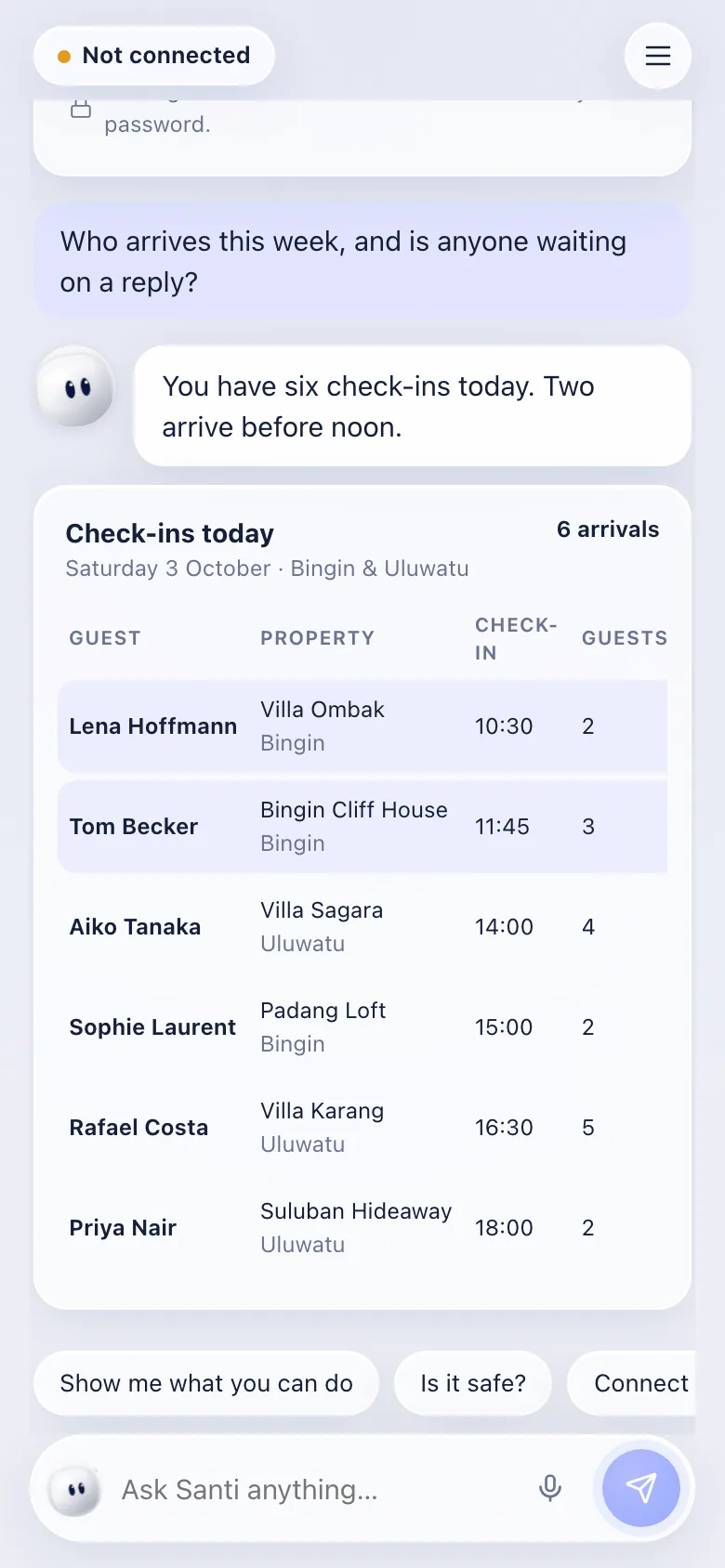
What Santi can do
Section titled “What Santi can do”It can read your bookings, guests, calendar, prices, inbox, reviews, cleaning, tickets, revenue and channel health. It can also give you a room’s Wi-Fi password or door code — but only when you ask for it.
It can change, with your approval:
- Calendar — block and unblock dates; the change goes to every connected channel.
- Prices and rules — nightly rates, minimum stay, stop-sell.
- Bookings — add, change and cancel bookings made in Santara AI.
- Guests — reply to one guest or several at once, send an upsell offer, reply to a review.
- Team — create and update tickets, assign cleans, mark them done.
- Expenses — add one.
It never syncs or re-imports a channel — it sends you to Full sync in Santara AI for that.
Santi can also remind you of something (“remind me Friday to check the pool”) — reminders arrive as notifications and need no approval.
Approving a change
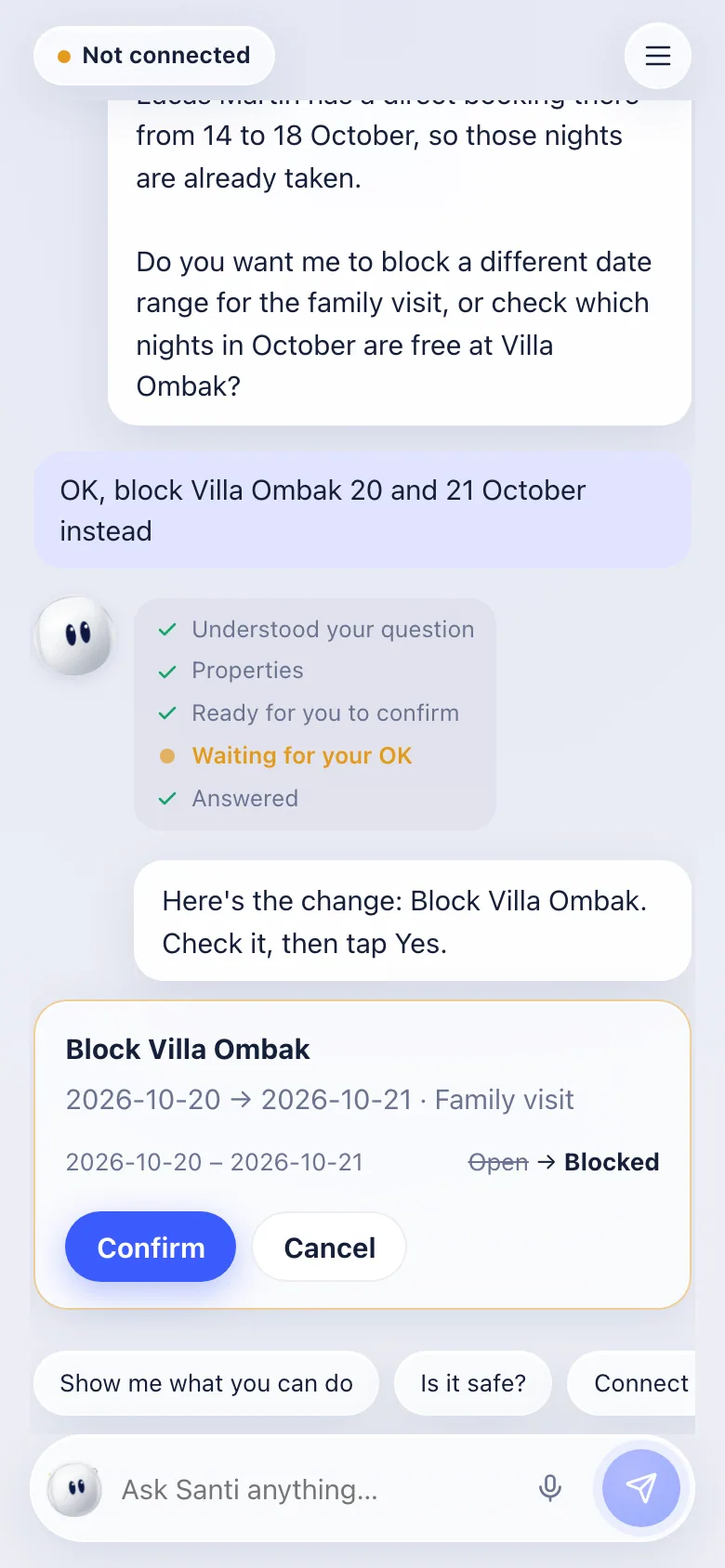
Section titled “Approving a change”Every change shows a card with what will change, before and after.
- Yes / No — or say yes.
- Confirm / Cancel — or say confirm. Confirm wakes up a moment after Yes, so a double tap cannot approve by accident.
Bigger changes — cancelling a booking, moving a price by more than 30%, a message to several guests — show Needs a hold to confirm: press and hold Hold to confirm. Voice does not work for these.
A card expires after five minutes. For 30 seconds after blocking or unblocking dates, or moving a ticket, Undo appears — and goes through Yes and Confirm again. Price changes cannot be undone; ask Santi to change them back.
Everything Santi does runs with your permissions in that workspace.
A real case: blocking dates for a family visit
Section titled “A real case: blocking dates for a family visit”This is the demo, start to finish, as it happened.
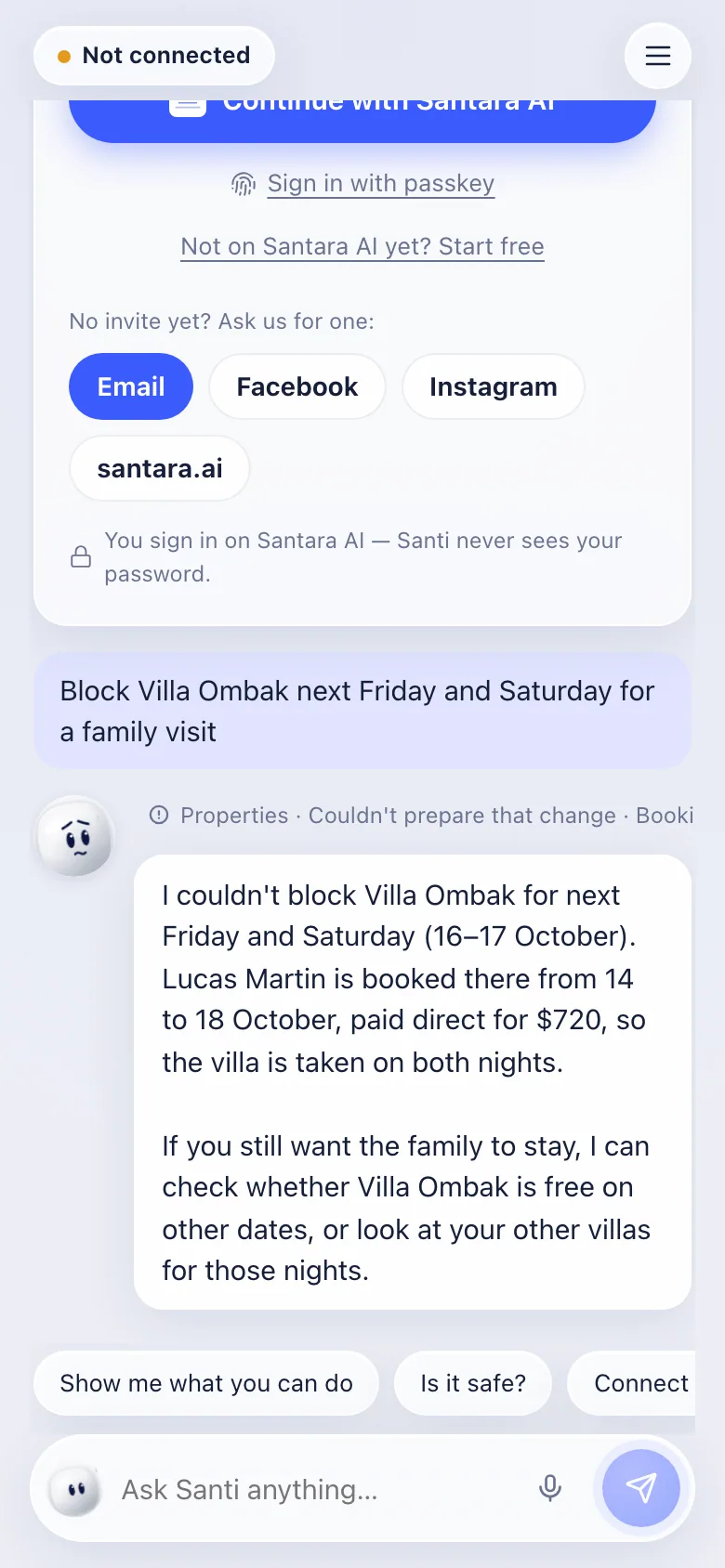
1. The first request clashes with a booking. “Block Villa Ombak next Friday and Saturday for a family visit.” Santi looks before it proposes anything: Lucas Martin has a direct booking on those nights, so it says so, offers other dates or other villas, and changes nothing.
2. A range that is free gets a card. “OK, block Villa Ombak 20 and 21 October instead.” The steps above the answer show what Santi checked; the card shows the dates, the reason, and Open → Blocked. After Yes, the buttons become Confirm and Cancel — only Confirm blocks the nights, on every connected channel.
3. Changed your mind? For 30 seconds Undo puts the nights back — through Yes and Confirm again.
Memory
Section titled “Memory”Tell Santi something that stays true — “Aiko is a VIP”, “no late checkout at Villa Ombak” — and it remembers. If it is sure it heard you right it says Santi will remember; otherwise it asks Remember this? It never remembers passwords, codes or card numbers, and never learns from what a guest wrote.
Menu → What Santi remembers lists everything, with Forget on each. You can also just say “forget…”.
Menu → Clear conversation deletes this workspace’s chat on every device; it cannot be undone. Santi keeps the lasting facts you told it as memories first, and tells you which.
Languages
Section titled “Languages”English, Tiếng Việt and Bahasa Indonesia. Change it in Menu → Language. Write in another language and Santi answers in that one; drafts to guests are always in the guest’s language.
Notifications
Section titled “Notifications”Menu → Notifications turns on alerts for new bookings, cancellations, guests waiting more than two hours, and a summary at 7:00 each morning. On iPhone, add Santi to your home screen first.
Limits
Section titled “Limits”Santi has a daily limit per person — roughly 150 questions. When you reach it, Santi says so; it resets the next day. Chats are kept for a year unless you clear them.
For AI tools: this page as markdown · llms.txt · llms-full.txt