

Settings & Search
Search the workspace, use the More menu, switch appearance, manage or delete your account, and reach Santi's menu in Santara AI Mobile.
The header at the top and the menu behind the More tab are where you reach search, your account and the settings of Santara AI Mobile.
1. Global Search (Workspace Search)
Section titled “1. Global Search (Workspace Search)”Tap the Search icon (magnifying glass) in the header. Search by guest name, confirmation code, property or room. Type at least 2 characters; results are grouped into Reservations, Guests, Properties and Rooms, and your recent searches are kept for next time.
2. The Menu (More)
Section titled “2. The Menu (More)”Tap the More tab to slide out the menu:
Switch Workspace
Section titled “Switch Workspace”If you work in several workspaces (for example, for more than one host), tap the current workspace name at the top of the menu and pick another. All data reloads straight away. The menu also shows your role in the current workspace.
Navigation
Section titled “Navigation”The menu lists the screens your role can open — Today, Messages, Tasks, Calendar under Every day, and Settings under Setup.
Appearance
Section titled “Appearance”At the foot of the menu, tap Dark mode (or Light mode while dark) to switch the app’s look.
Your Account and Sign Out
Section titled “Your Account and Sign Out”Tap Personal account at the foot of the menu, then:
- Personal settings — your Account preferences (profile photo, name, language, timezone), Change password, and Delete account. See Deleting your account.
- Sign out — logs you out of the app after a confirmation.
3. Detailed Settings
Section titled “3. Detailed Settings”From the menu, open Settings. It has two tabs:
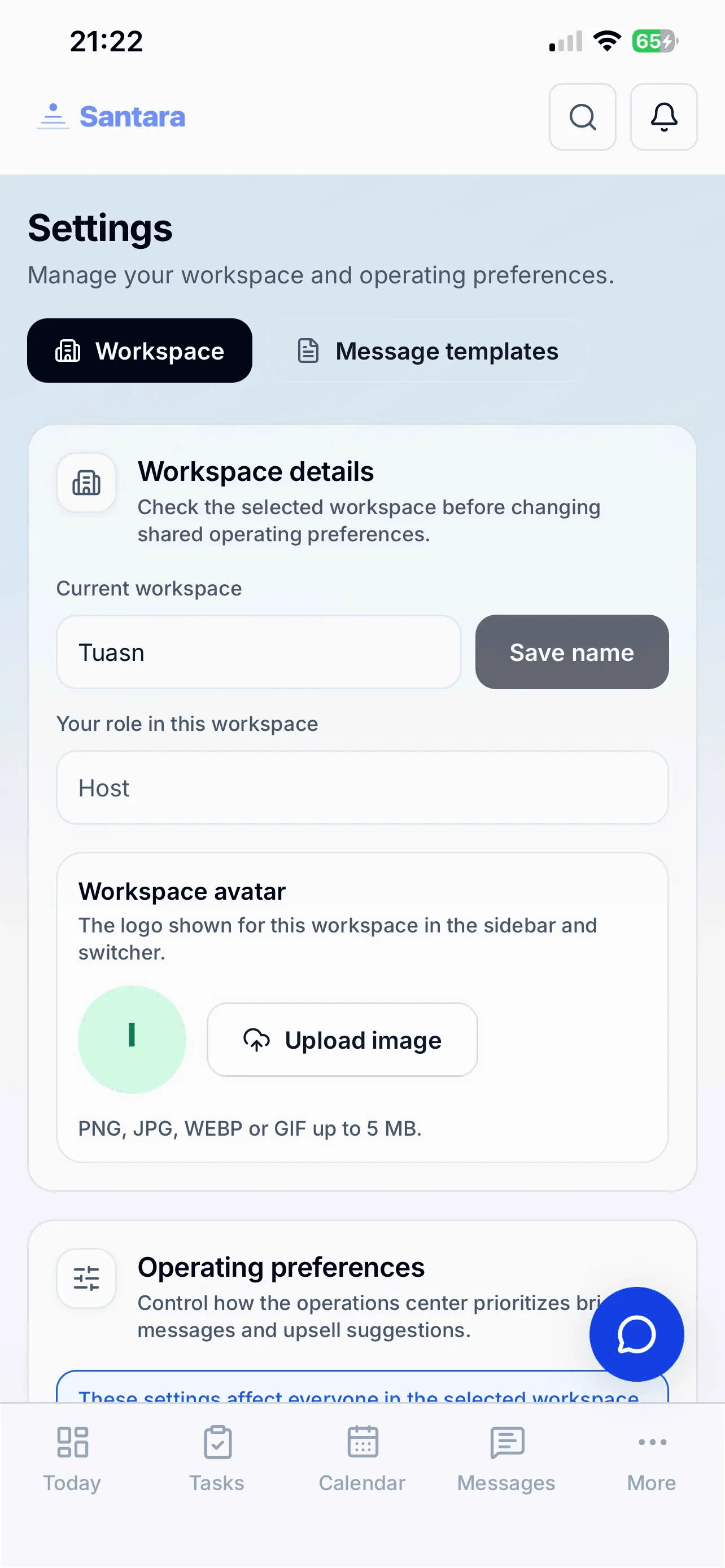
Workspace
Section titled “Workspace”Change the workspace name and logo (only hosts or administrators can). The changes apply to everyone in the workspace immediately. Below that are the workspace’s Operating preferences, including Display currency (USD, IDR or VND) used for revenue figures.
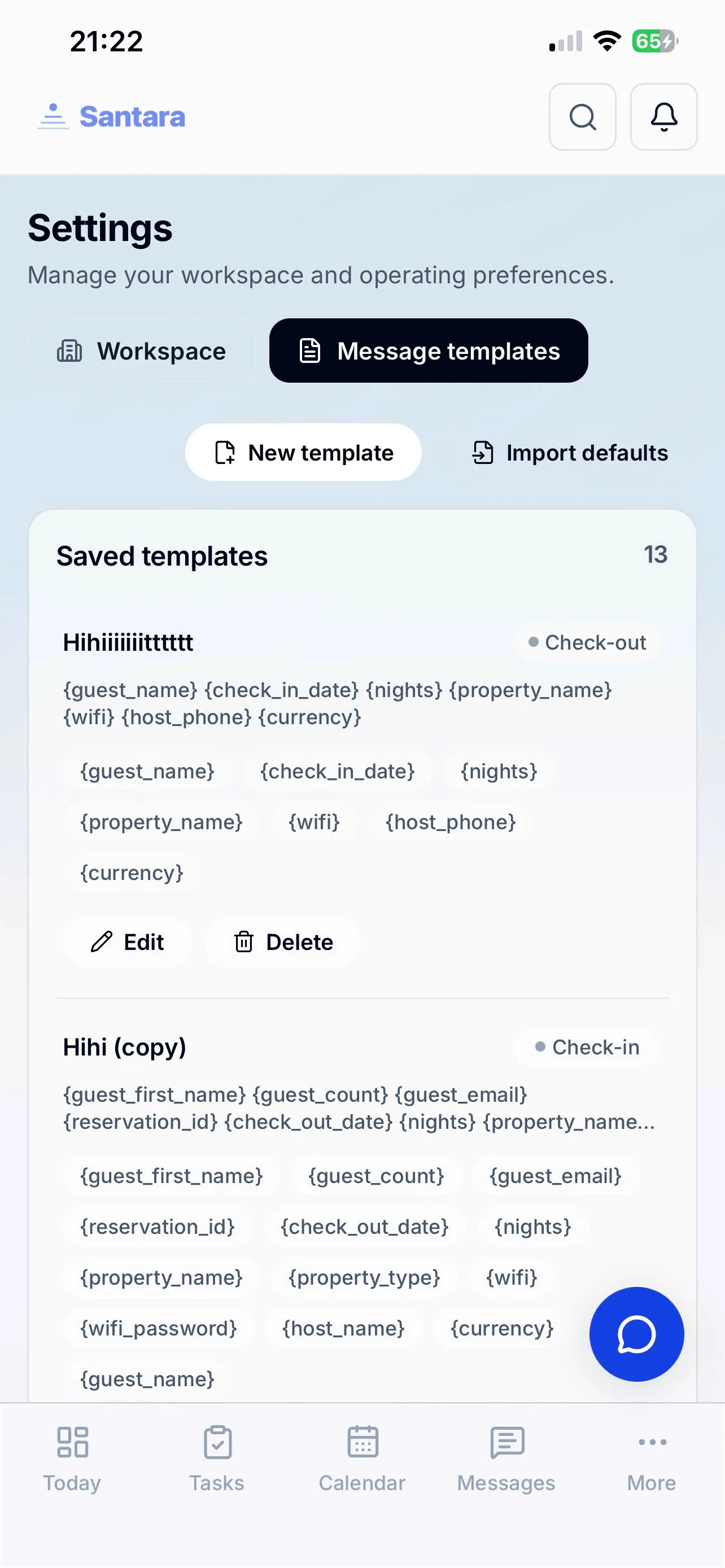
Message Templates
Section titled “Message Templates”Set up pre-written replies (check-in instructions, house rules, WiFi password…). Create a template once here, and you and your staff can insert it from Templates when replying to a guest instead of typing from scratch.
4. Santi and its menu
Section titled “4. Santi and its menu”The Santara | Santi switch at the top of the screen opens Santi, the AI agent, in place of your usual tabs. Santi has its own menu — tap ⋯ next to Voice — for its language, workspaces, what it remembers, notifications, Clear conversation and signing out of Santi. See The Santi menu.
For AI tools: this page as markdown · llms.txt · llms-full.txt