

Omnichannel Inbox
Manage guest messages from multiple channels and chat internally with your team.
The Messages tab is the central hub for all communications in your workspace. You can easily toggle between two main communication flows: Guest messages and Team chat.
1. Guest Messages
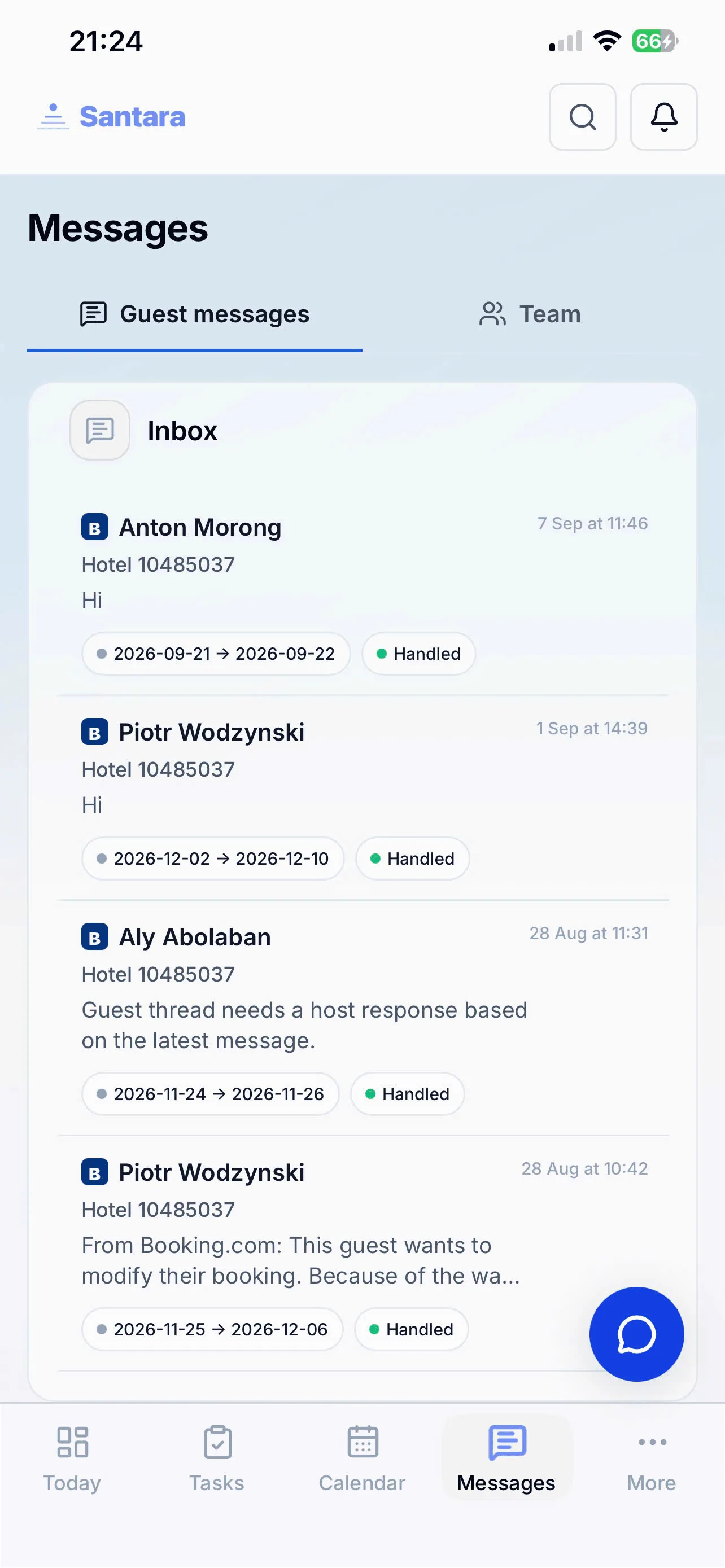
Section titled “1. Guest Messages”This is where the list of messaging guests is displayed. All channels (Airbnb, Booking.com, Direct bookings…) are consolidated into a single interface so you never miss a message.
- Channel Identification: A small icon next to the guest’s name will indicate whether they are from Airbnb or Booking.com.
- Preview / Summary: Quickly read a preview or a summary of the last message right from the list without opening it.
- Visual Indicators: Unread messages are marked with a blue dot and bold text. High-priority messages have a red border to draw attention.
- Quick Action: Tap to open the full conversation. You can send messages, photos, or files directly from your phone.
AI Draft
Section titled “AI Draft”The app uses AI to understand the context of the chat (e.g., asking for the WiFi password, how to open the door…). The AI will automatically compose a draft reply. Managers can choose “Use this draft” or edit it before sending.
Mark Handled
Section titled “Mark Handled”Once a guest’s issue is resolved, you can swipe or select Mark Handled. The conversation will be archived to keep your inbox tidy (Inbox Zero).
2. Team Chat
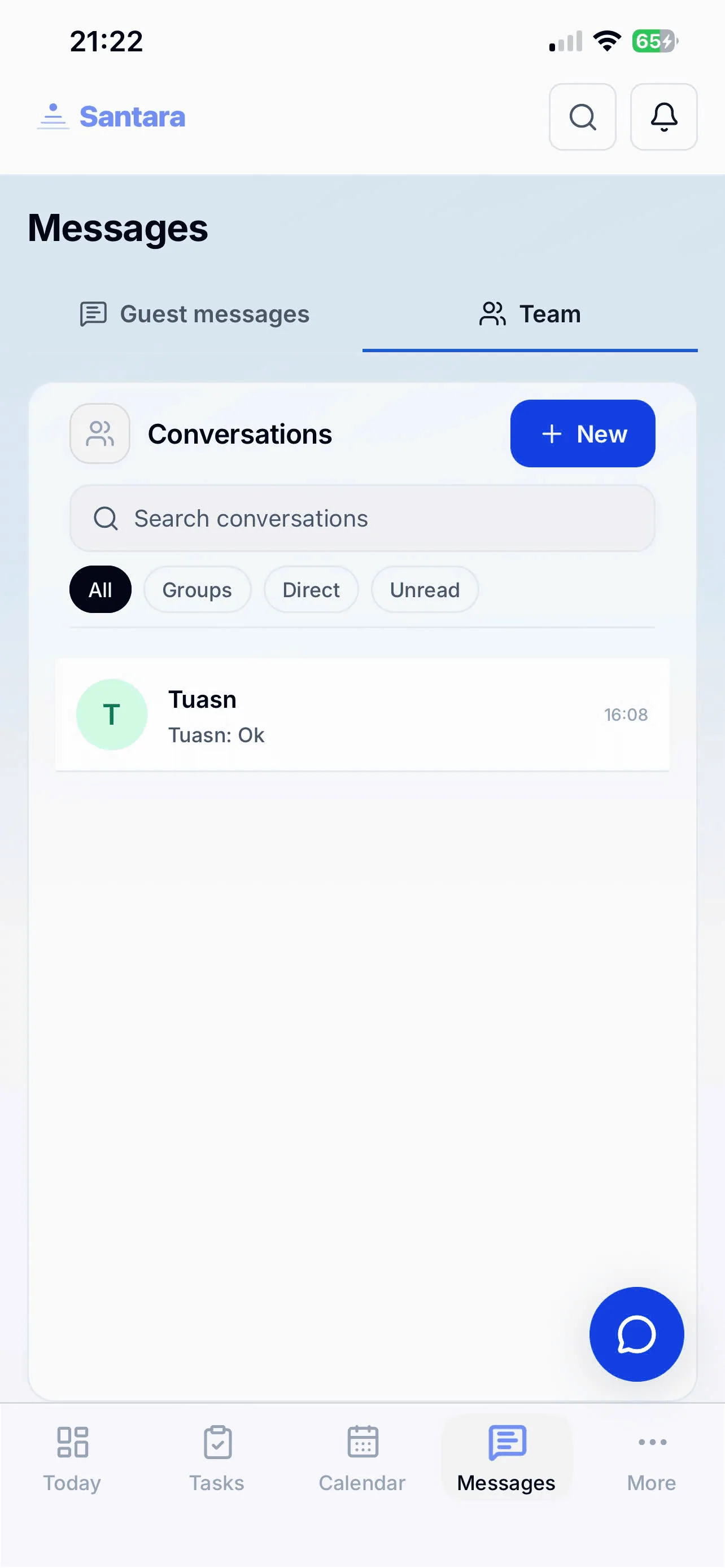
Section titled “2. Team Chat”Your team (Managers & Staff) can chat 1-on-1 or in groups right on the app without needing external apps.
- Create New: Tap the (+) icon to create a new internal conversation.
- Quick Filters: Use the filters at the top such as “All”, “Group”, “Direct”, or “Unread” to easily browse messages.
- Search: Enter keywords into the search bar to quickly find a group chat or a member’s name.
Convert to Task
Section titled “Convert to Task”If a staff member messages the group “Toilet broken in room 102”, the manager can simply long-press the message and select “Convert to Task”. A maintenance ticket will be created instantly.
Read Markers
Section titled “Read Markers”The app clearly shows “Who has read this message”, ensuring managers know exactly if a staff member has received an instruction.
For AI tools: this page as markdown · llms.txt · llms-full.txt