

Channel guides
One guide per channel — what to switch on in its extranet, what to enter in Santara AI, and how its rooms and rates map.
Every channel connects through the same setup in Santara AI — choose property, connect and map, import (Connect another channel). What differs is the work on the channel’s side first, the ID or login it gives you, and how its rooms and rates map. Each guide below covers one channel.
Where you connect a channel
Section titled “Where you connect a channel”Open Settings → Channels → Add a channel and press Connect on the channel.
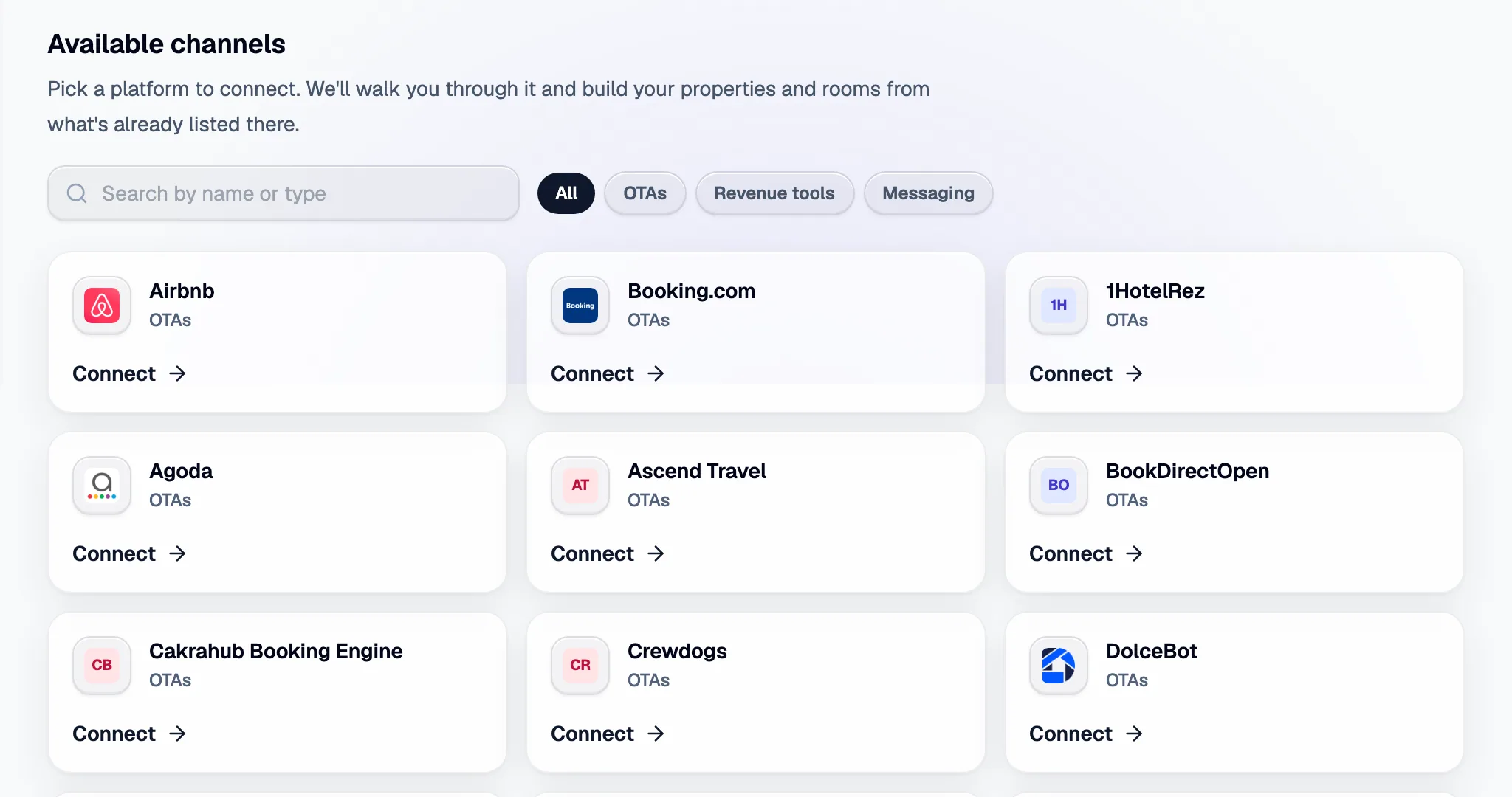
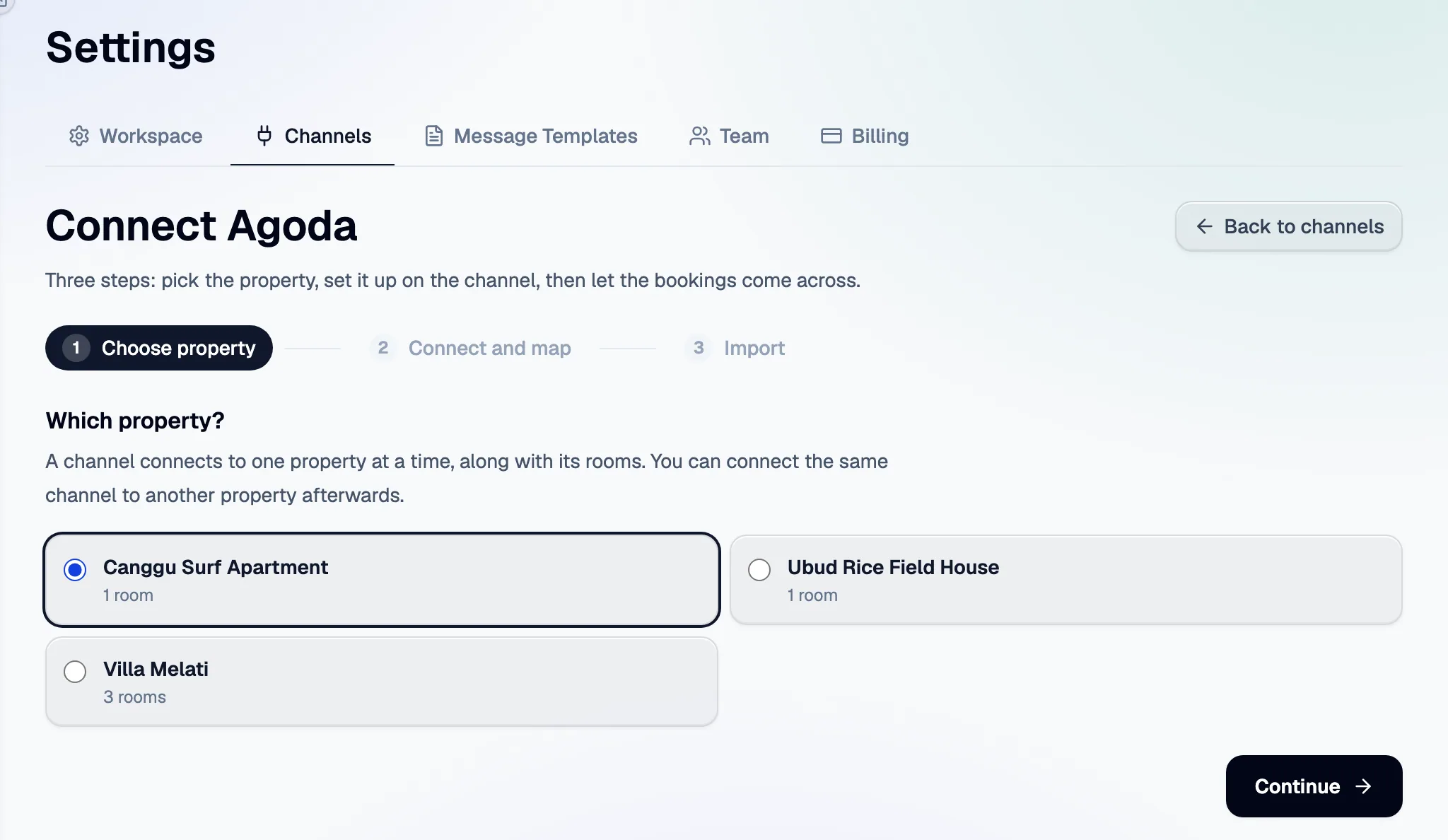
Then pick the property the channel is for. Step 2 shows that channel’s own setup fields — each guide has a screenshot of them.
Before any channel
Section titled “Before any channel”- You need your own contract with the channel, with the property’s details and photos already in its extranet. Santara AI cannot create a listing on a channel for you.
- The channel has to allow the connection first. In its extranet, or by asking its support, choose Channex as your channel manager or connectivity provider. Channex is Santara AI’s connectivity partner — it is the name the channels know us by.
- Remove any old channel manager or iCal link for that property on the channel. Two systems updating the same calendar overwrite each other.
Two mapping styles
Section titled “Two mapping styles”- Multi-occupancy — one price per guest count (1 guest, 2 guests, …). If you only have one price for the room, map that same rate to every guest count.
- Per room — one price for the room, whoever stays. Map your full-occupancy rate.
All channel guides
Section titled “All channel guides”| Channel | What you enter in Santara AI | Mapping |
|---|---|---|
| Airbnb | Sign in to Airbnb (pop-up) | Listing by listing |
| Booking.com | Hotel ID | Room and rate |
| Agoda | Hotel ID | Multi-occupancy |
| Expedia | Hotel ID | Room and rate |
| Trip.com (Ctrip) | Hotel Code | Usually multi-occupancy |
| Traveloka | Property ID (letters) | Multi-occupancy, RETAIL rate |
| Tiket.com | Hotel ID | Room and rate |
| Klook | Hotel ID | Room and rate |
| MakeMyTrip and Goibibo | Hotel ID + access token | Usually multi-occupancy |
| Vrbo | Vrbo username + password | Listing by listing |
| Hostelworld | Hotel ID | Maximum occupancy |
| Hotelbeds | Username + password, then a contract | Room and rate |
| Despegar | Hotel ID + username + API password | Room and rate |
| HRS | Hotel ID | One rate per room |
| Check24 | Hotel ID | Multi-occupancy |
| Crewdogs | Hotel Code | Room and rate |
| Dida Travel | Hotel ID | Room and rate |
| Emerging Travel Group | Hotel ID | Usually multi-occupancy |
| Feratel | Hotel ID | Multi-occupancy or per room |
| Glamping Hub | Hotel Code | Per room |
| Hipcamp | Hotel Code | Room and rate |
| Hotel Trader | Hotel Code | Room and rate |
| HotelTonight | Hotel ID | Room and rate |
| HyperGuest | Property ID | Multi-occupancy |
| Inntopia | Hotel ID | Per room, RACK rate |
| Kliknbook | Hotel Code | Multi-occupancy |
| MG Bedbank | Hotel ID | Usually multi-occupancy |
| Mr & Mrs Smith | Hotel ID | Per room |
| OpenGDS | Hotel ID | Per room |
| PriceTravel | Hotel ID | Multi-occupancy |
| Roibos | Username + password, then a contract | Room and rate |
| WebBeds | Hotel Code | Room and rate |
| Yatra | Hotel ID | Per room |
| Getaroom | Hotel ID | Room and rate |
| Hopper (hotels only) | — | Best available rate |
| Nuitee (hotels only) | — | Best available rate |
| Google Hotels and Vacation Rentals | Booking link or built-in booking page | Rate plans to show |
| Hopper Homes | Partner sign-up + host email | Listing by listing |
| More channels — 35 more catalogue channels | Hotel Code (mostly) | — |
Guest messages
Section titled “Guest messages”Replying to guests from Santara AI works on Airbnb, Booking.com and Expedia. On every other channel, answer guests in the channel’s own inbox.
Still stuck?
Section titled “Still stuck?”- Test connection fails — check the ID, then ask the channel’s support to confirm the property is connected to Channex and that no other channel manager is.
- Rooms or rates missing on the mapping screen — they are not set up in the channel’s extranet yet, or the channel has not finished its side. Add them there and reopen the setup.
- More fixes: Channel troubleshooting.
For AI tools: this page as markdown · llms.txt · llms-full.txt