

Santi — Your AI Agent
Use Santi inside the Santara AI mobile app — ask by text or voice, read answers built from your own data, and approve every change before it happens.
Santi is your AI agent for the stays you run, and it lives inside the Santara AI app. Ask by text or by voice, get answers built from your own bookings, guests, cleaning and revenue, and approve every change before anything happens.
It is the same Santi as the Santi app at santi.santara.ai, with the same account and the same conversation. This page covers what is specific to the mobile app.
1. Open Santi
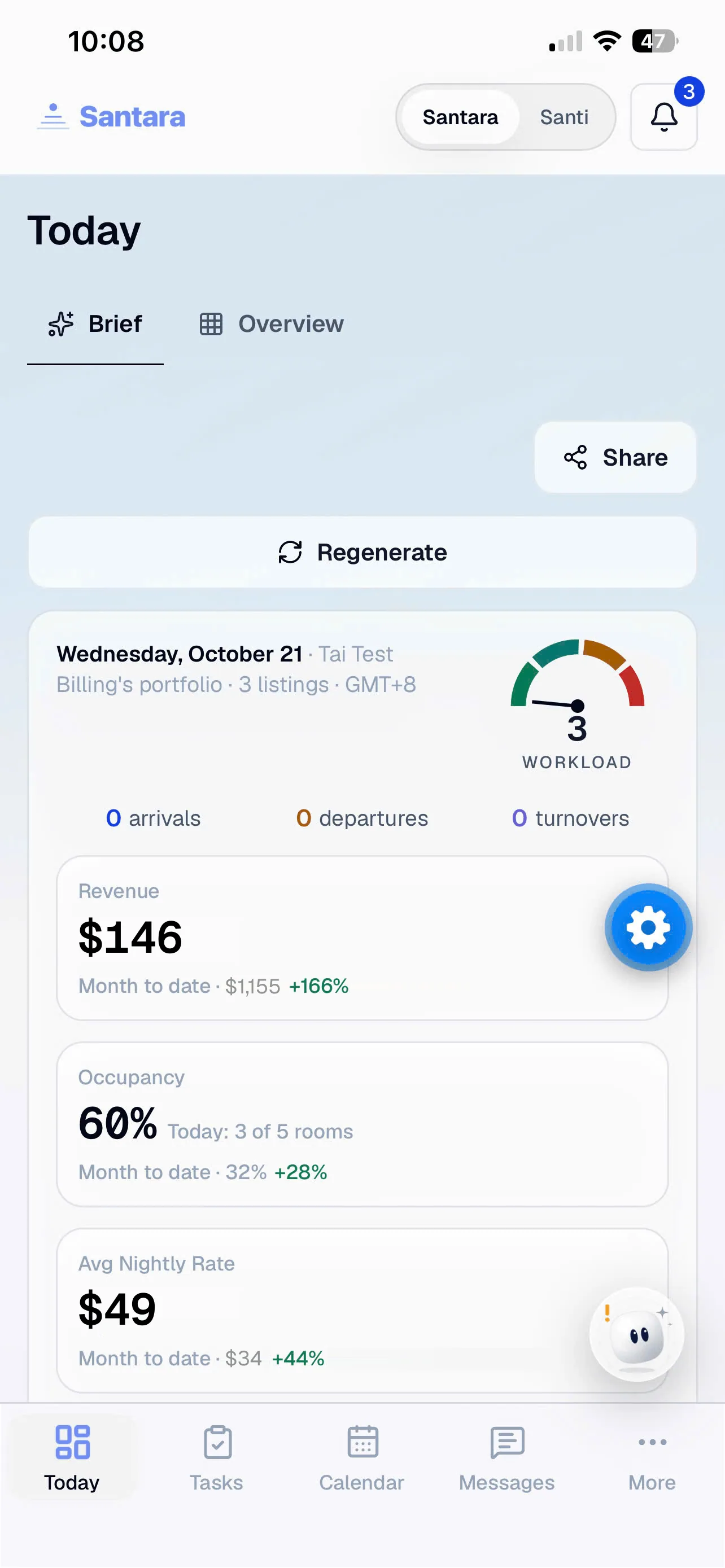
Section titled “1. Open Santi”Santi has its own place in the app. Tap Santi in the Santara | Santi switch at the top of any screen to open it, and tap Santara to go back to your usual tabs. The app remembers which one you used last.
Santi also opens when you tap Ask Santi on a record (see below) or a notification from Santi. The round button that floats at the bottom of the main screens is a different assistant: it always opens Ask Santara Assistant.
2. Connect Santi the first time
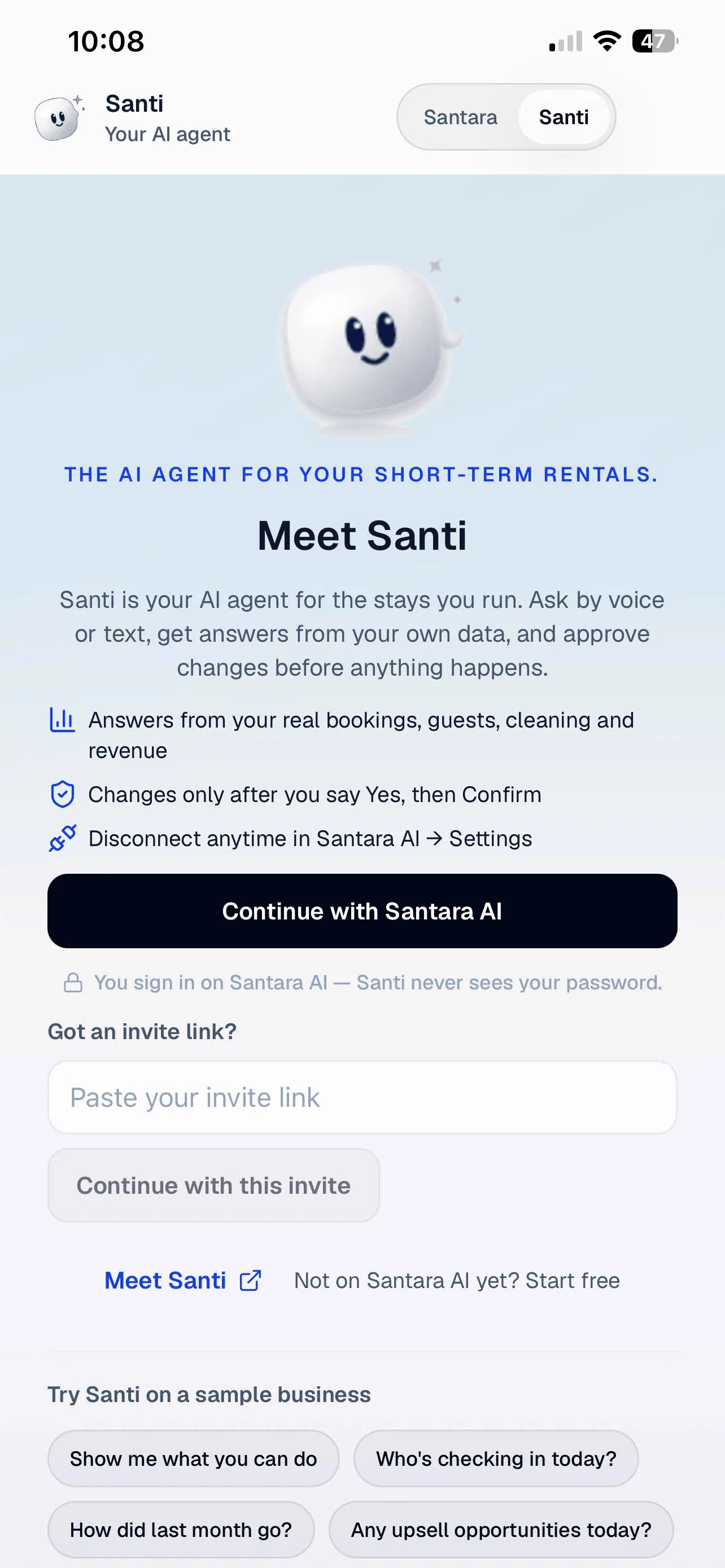
Section titled “2. Connect Santi the first time”Santi is invite-only for now. The first time you open it, you see Meet Santi:
- Tap Continue with Santara AI. You sign in on Santara AI, so Santi never sees your password.
- If you received an invite link, paste it under Got an invite link? and tap Continue with this invite.
- Pick your workspace and allow the connection. Santi is ready.
Use the same Santara AI account you are signed in with in the app. Another account is refused with “Sign in to Santi with the same Santara AI account as this app”.
Not connected yet? Under Try Santi on a sample business, tap a question such as Show me what you can do. Santi answers on a sample business, Bali Villa Co, without touching any real data.
3. Ask Santi about a booking
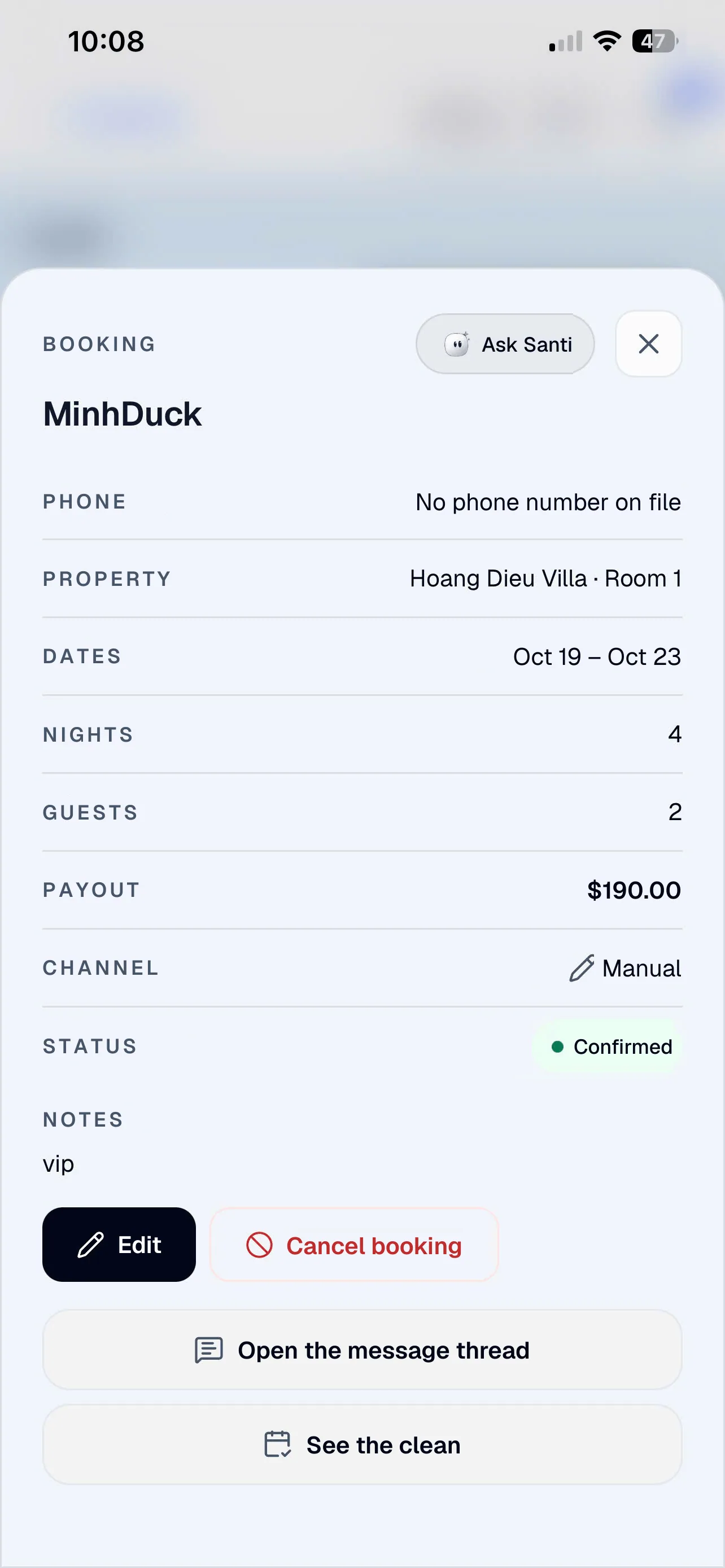
Section titled “3. Ask Santi about a booking”You do not have to retype what is already on your screen. Ask Santi buttons sit on:
- a booking’s details in Calendar,
- a guest’s details in Guests,
- a ticket in Tasks,
- a conversation in Messages.
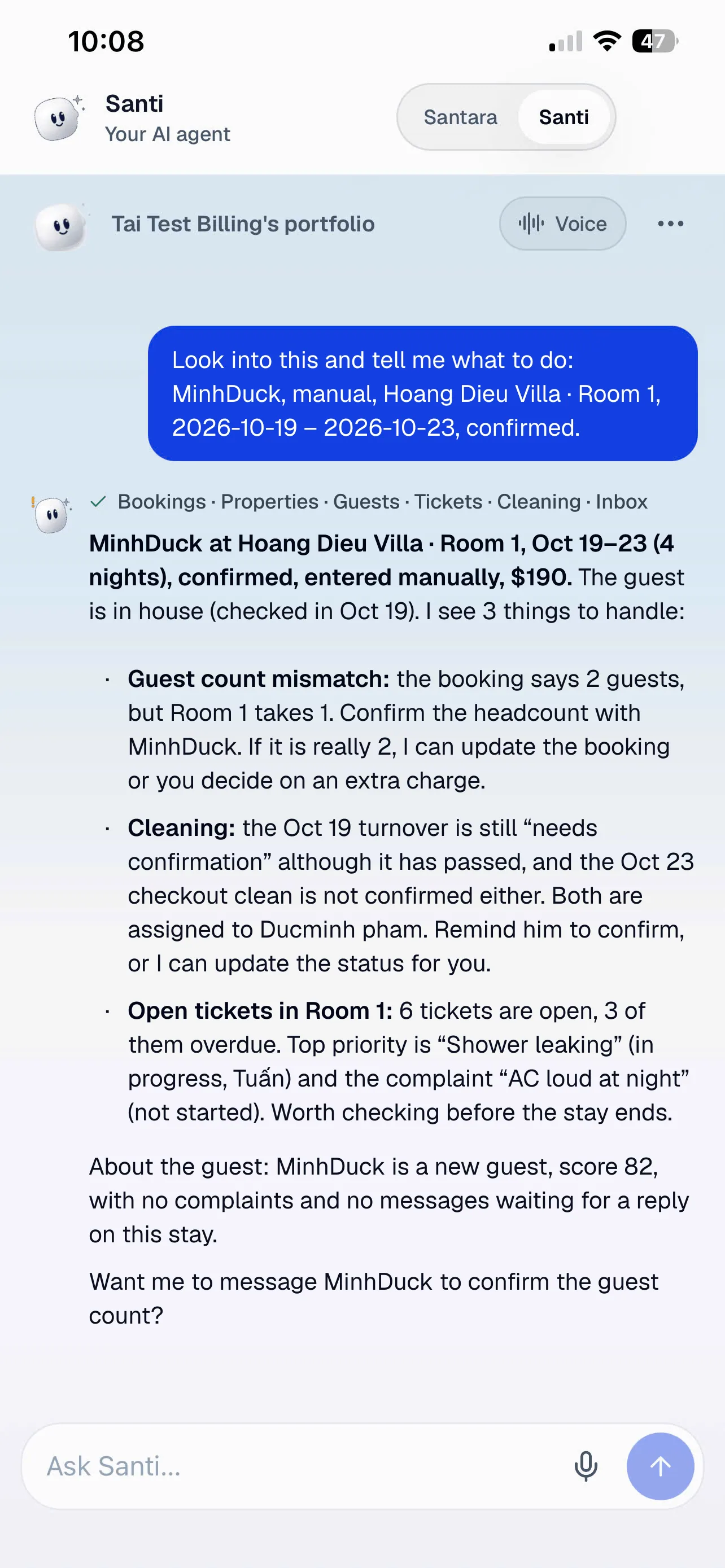
Tap one and the app switches to Santi and sends “Look into this and tell me what to do”, followed by that record’s details. Santi checks the booking, the guest, cleaning and tickets, and tells you what needs attention.
4. Read Santi’s answers
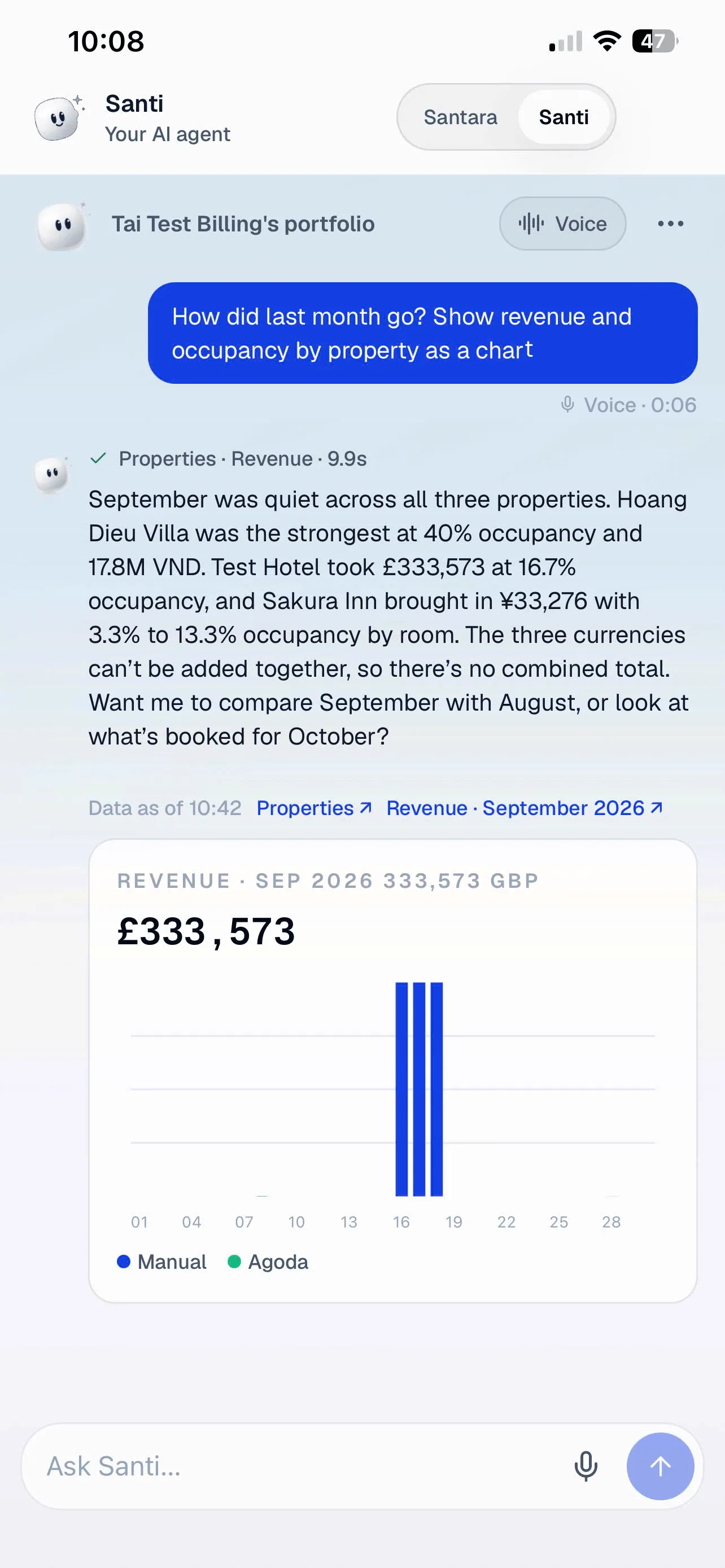
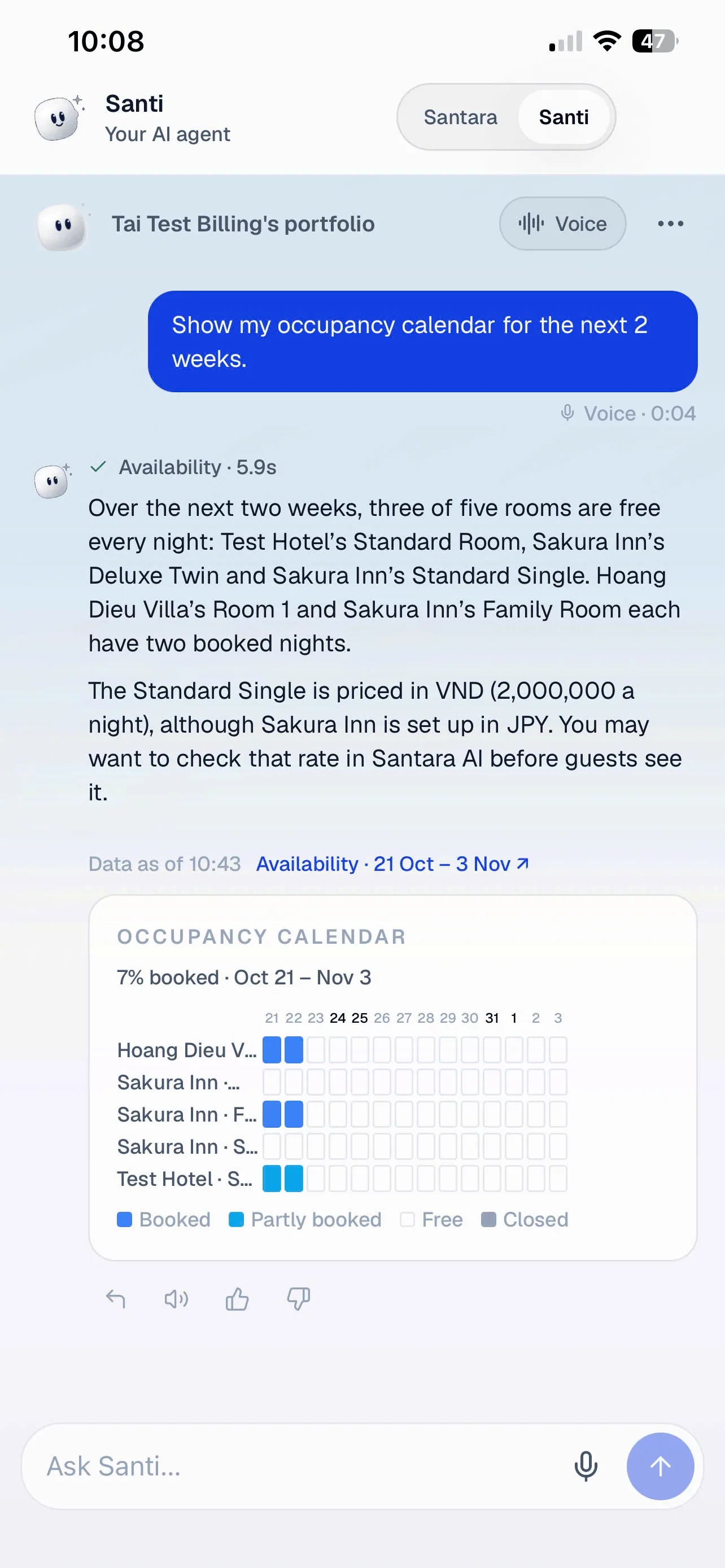
Section titled “4. Read Santi’s answers”Santi answers in plain words and, when it helps, with a picture: KPI tiles, charts, tables, or an occupancy calendar (Booked, Partly booked, Free, Closed).
Each answer also shows:
- What Santi looked at. The line above the answer (for example Properties · Revenue · 9.9s) lists what it checked and how long it took. Tap it to see the steps.
- Data as of a time, with links to the exact pages in Santara AI (↗) the answer came from.
- A warning in amber when Santi could not match a figure to your data. Check it in Santara AI before acting on it.
- Reply, Read aloud, Helpful and Not helpful under the answer, plus suggested follow-up questions.
5. Approve a change
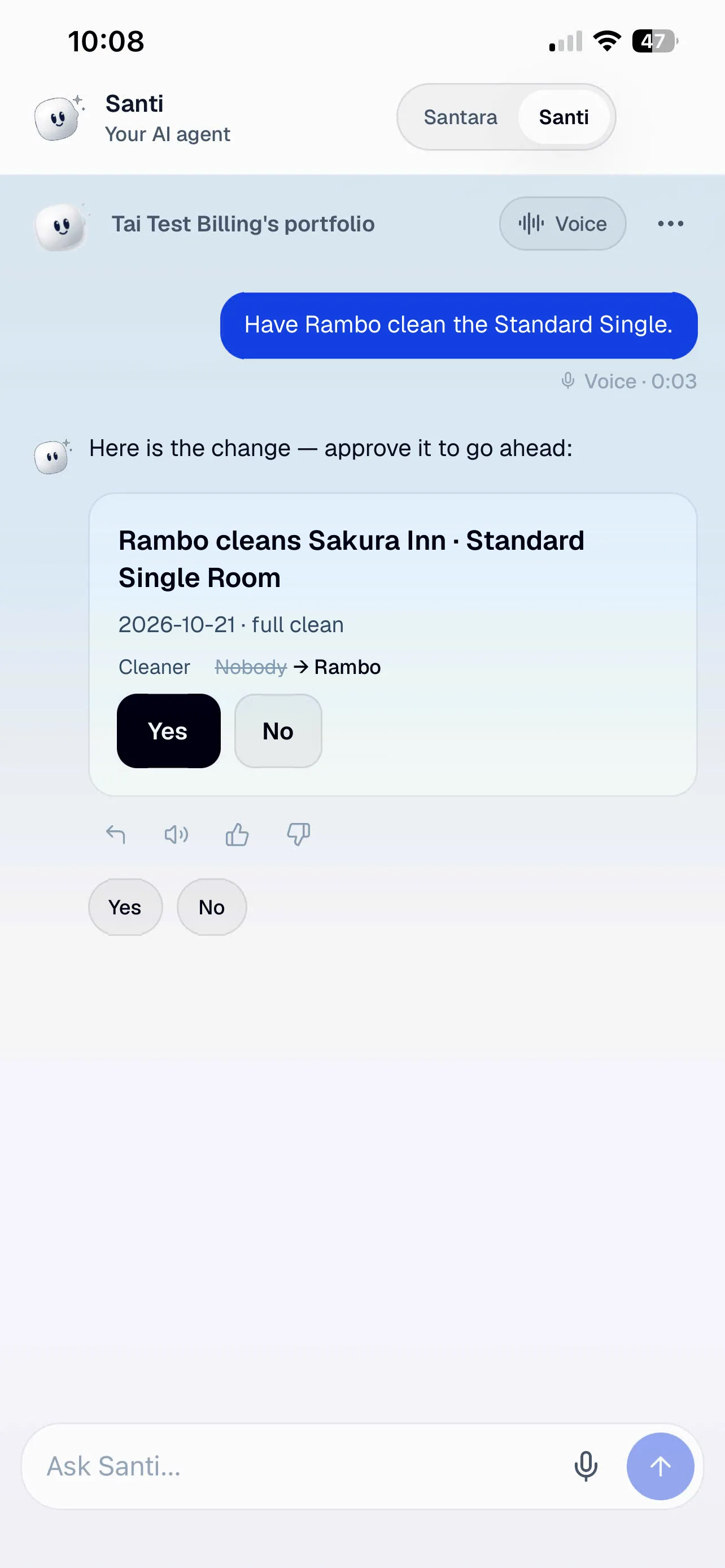
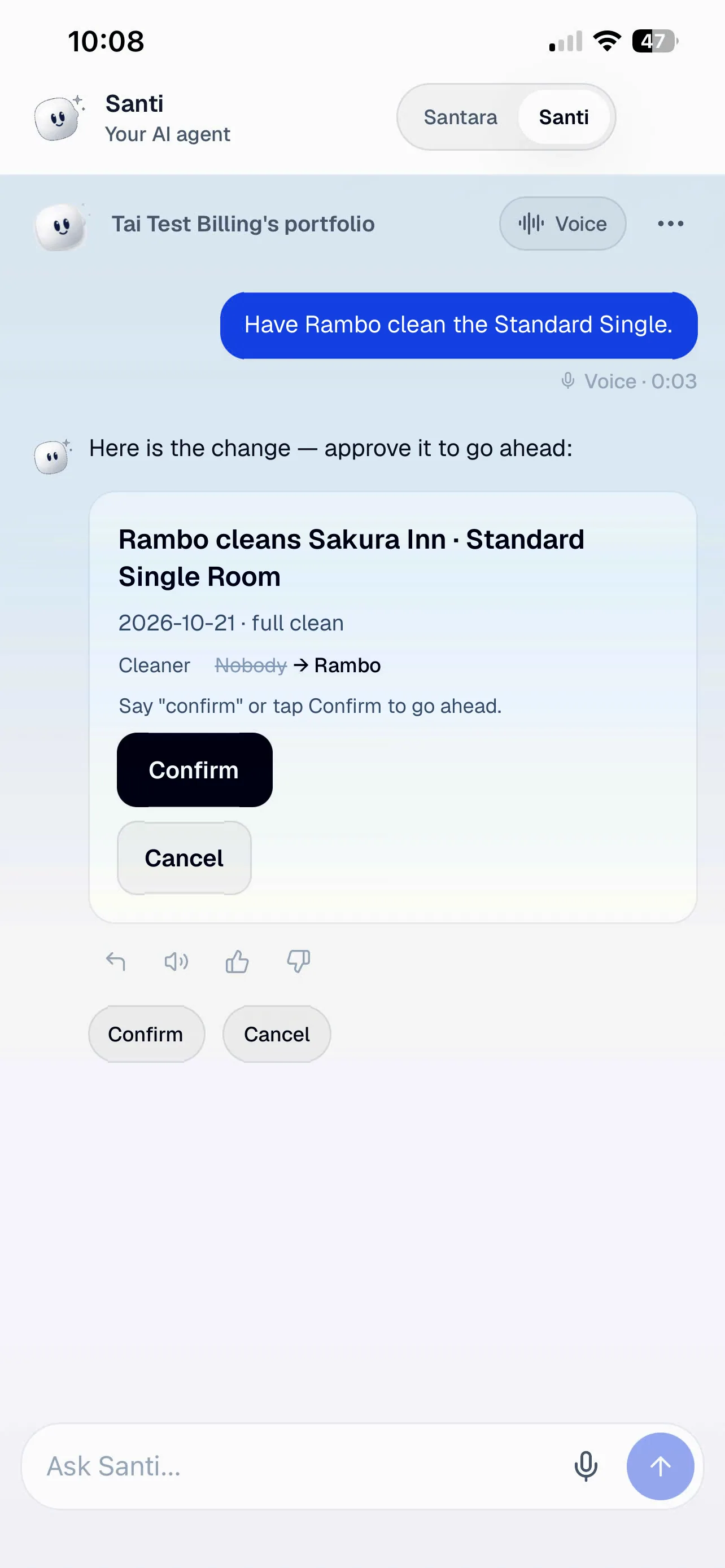
Section titled “5. Approve a change”Santi only reads your data until you ask for a change, and nothing changes until you approve it. Every change comes as a card that shows what will happen, for example Cleaner: Nobody → Rambo:
- Tap Yes.
- Tap Confirm. The button wakes up after a moment, so a double tap cannot approve by accident.
Risky changes, such as cancelling a booking or a refund, need Press and hold to confirm instead. After a change, Undo stays available for a short while, and an undo needs the same two steps.
To say no, tap No or Cancel: nothing happens.
6. Talk to Santi
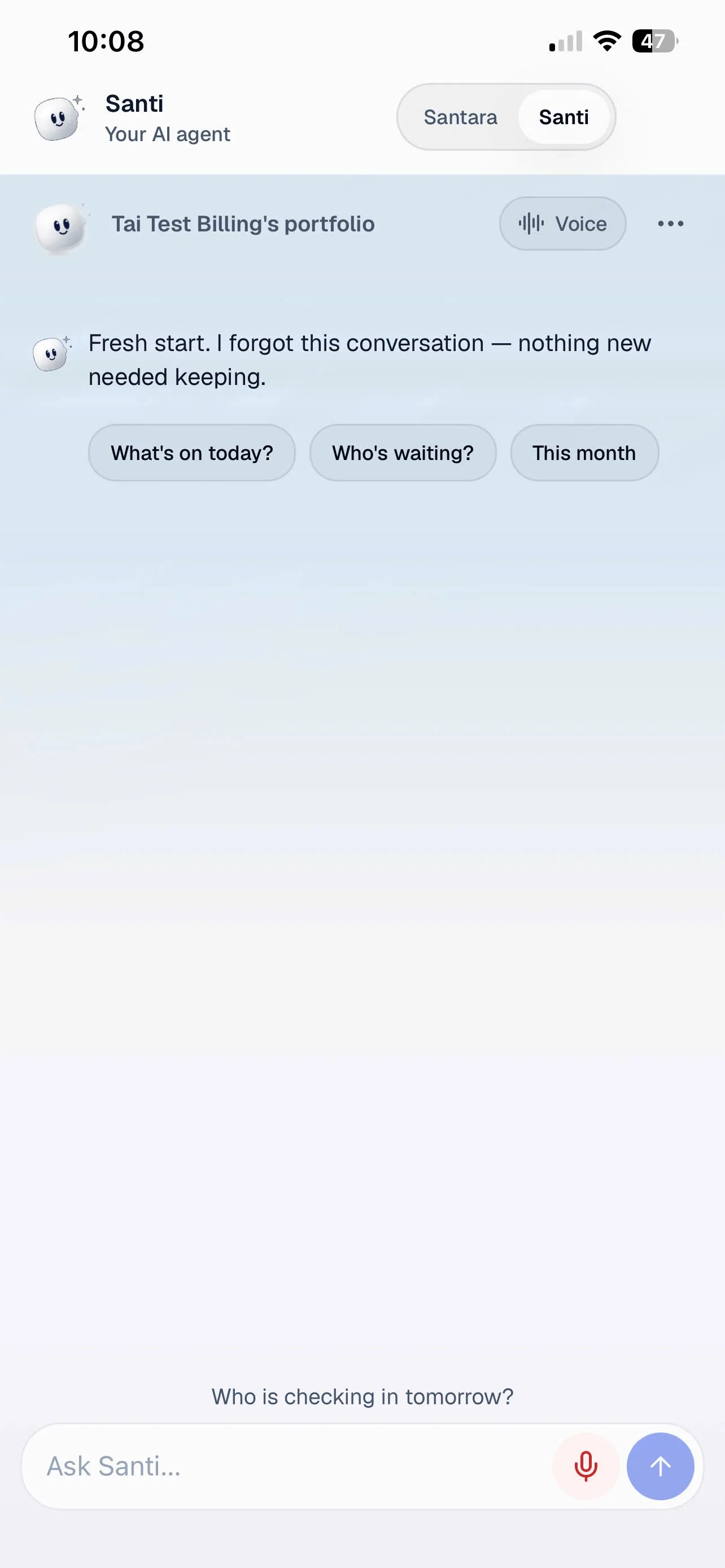
Section titled “6. Talk to Santi”Tap to talk. Tap the microphone in the message box and speak. The button turns red and your words appear above the box. Santi sends them when you pause, or tap again to send. A spoken question shows Voice and its length under it, and Santi reads its answer aloud.
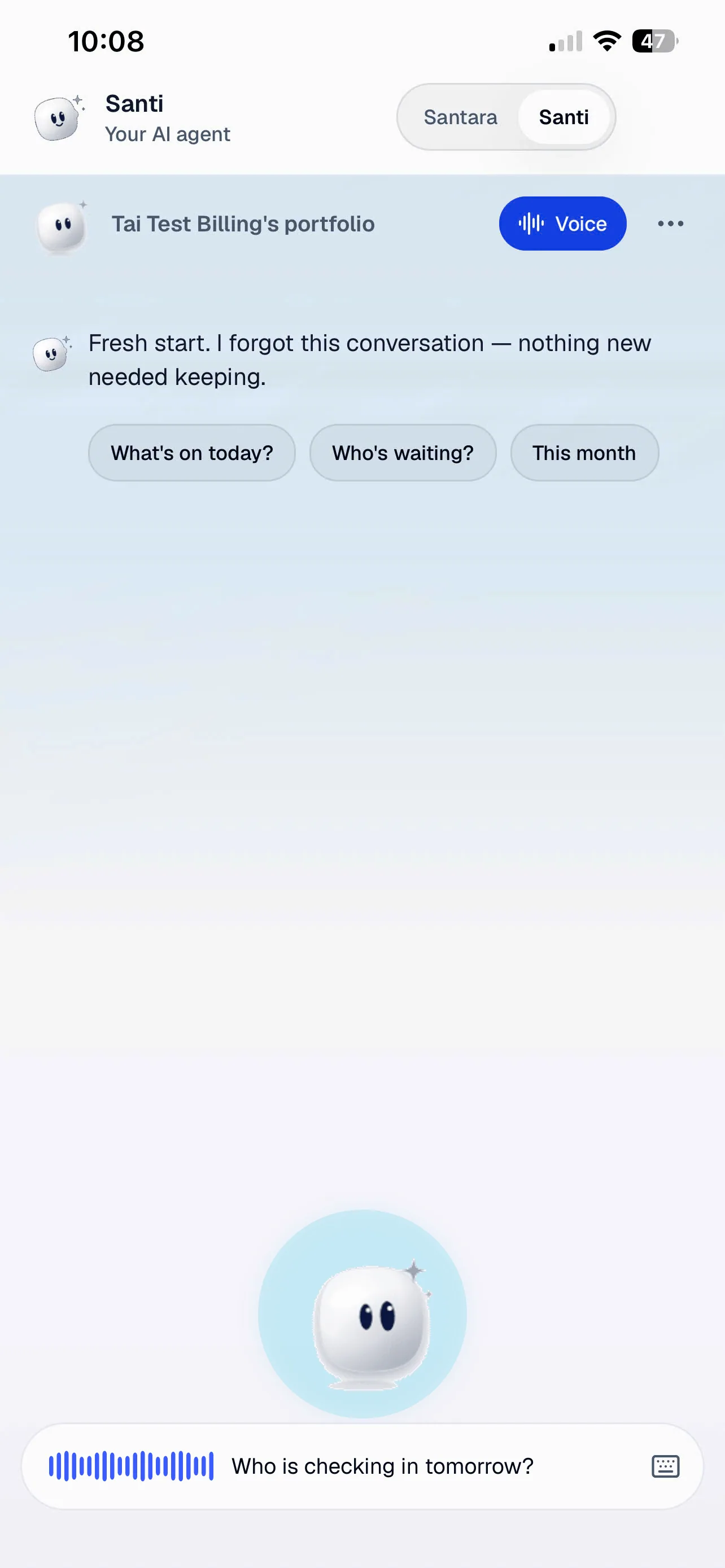
Voice mode. Tap Voice at the top for hands-free talk. A large Santi replaces the message box: the ring grows with your voice while it listens and pulses while it speaks. Tap Santi to wake it after a long silence, Stop speaking to quiet it, and the keyboard icon to go Back to typing.
On iPhone you can talk over Santi to correct it: it stops, marks the answer Interrupted, and Continue reads the rest. On Android, tap Santi to interrupt.
To answer a change card by voice, say yes, then confirm, or cancel. A risky change can never be approved by voice.
Santi answers in the language you write or speak in, English, Vietnamese or Indonesian.
7. The Santi menu
Section titled “7. The Santi menu”Tap ⋯ next to Voice for:
- Language: the language Santi uses with you, on every device and in notifications.
- Workspaces: switch workspace, Reconnect a broken one, or Add a workspace.
- What Santi remembers: everything Santi keeps about your business, each with Forget.
- Notifications: turn Santi’s notifications On or Off, including the morning summary at 7:00 your time.
- Invite people (admins only): create an invite link for someone’s email, then copy or share it.
- Clear conversation: Santi forgets what was said here, on every device. Important things stay as memories.
- Sign out of Santi: Santi stops on this phone. Your Santara AI account stays signed in.
When you open Santi after some time away, it starts with what changed, today’s briefing, and any reminders that are due.
8. Common questions
Section titled “8. Common questions”I don’t see the Ask Santi buttons. Santi is invite-only. Until you connect it, Ask Santi buttons are hidden. Tap Santi in the header to connect.
I tapped the round floating button and got a different chat. That button always opens Ask Santara Assistant, Santara AI’s own assistant. To reach Santi, use the Santara | Santi switch at the top.
“Voice isn’t available on this device.” Voice needs the full Santara AI app with microphone and speech access. If you refused it, allow microphone and speech recognition in your phone’s Settings.
Notifications show “Blocked”. Allow notifications for Santara AI in your phone’s Settings, then turn them on again from the Santi menu.
Santi asks me to sign in again. Santi signs you out if you sign out of Santara AI or another person signs in on the same phone, and after 60 days. Tap Continue with Santara AI to reconnect.
What can Santi change, and what are its limits? See the Santi app for what a connection allows, how memory works, and Santi’s limits.
For AI tools: this page as markdown · llms.txt · llms-full.txt