

Connect ChatGPT, Claude or Grok
Use Santara AI from ChatGPT, Claude, Grok and other AI assistants — how to connect each one, what an assistant may do on its own, how it asks you first, and how to disconnect.
You can talk to your Santara AI workspace from the AI assistant you already use. Ask “Who arrives today?” or “Block Garden Room this weekend” in ChatGPT, Claude or Grok, and it answers from — and works in — your real calendar, bookings, guests and cleaning board.
Every assistant connects with the same address:
https://mcp.santara.ai/mcpClaude
Section titled “Claude”Works in claude.ai, Claude Desktop and the Claude mobile app.
-
Open Settings → Connectors, click Add and choose Add custom connector.

Claude's Connectors page with the Add menu open on “Add custom connector”. -
Name it Santara AI, paste
https://mcp.santara.ai/mcpand click Continue.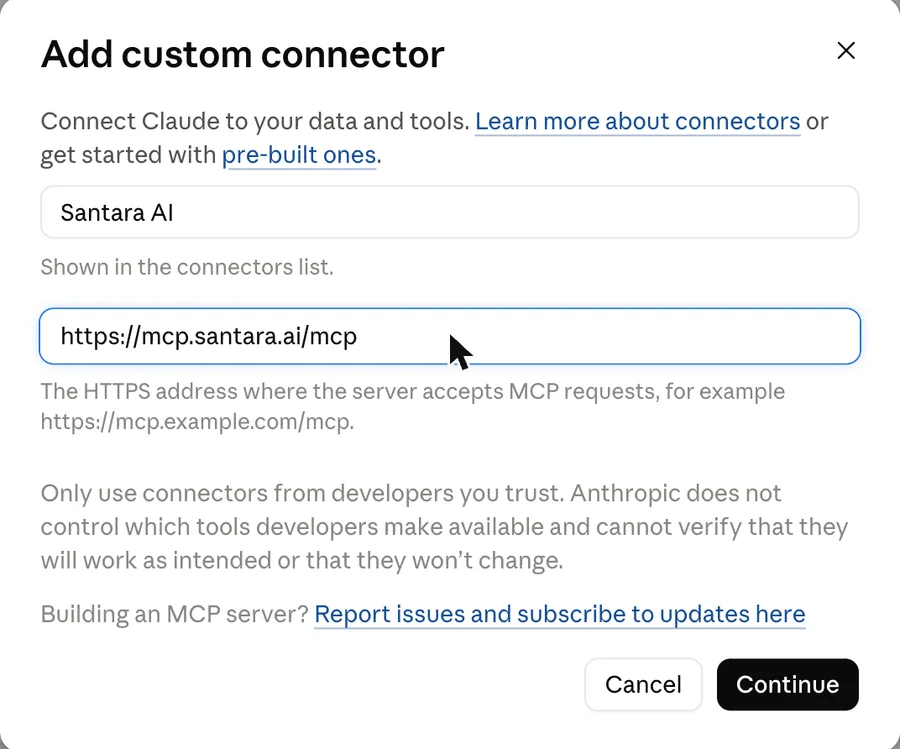
Claude's “Add custom connector” form with the name Santara AI and the server URL filled in. -
Claude detects everything by itself. Keep Sign in now and Use Claude’s published identity, leave the client ID and secret empty, and click Add.
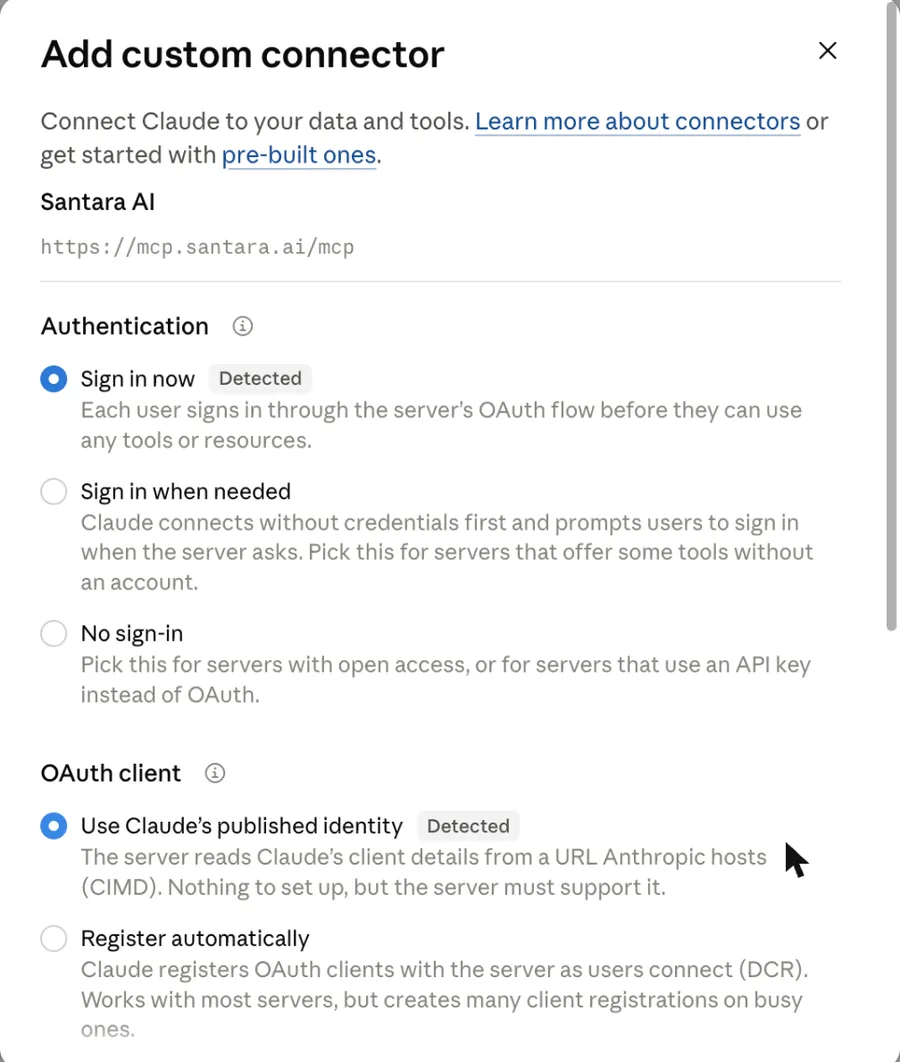
Claude marks “Sign in now” and “Use Claude's published identity” as Detected. -
Click Connect. Santara AI opens: sign in, pick the workspace and click Allow.
-
In a chat, switch it on under + → Connectors and ask away.
ChatGPT
Section titled “ChatGPT”-
Open Plugins in the sidebar, click Add and choose Add custom MCP server.
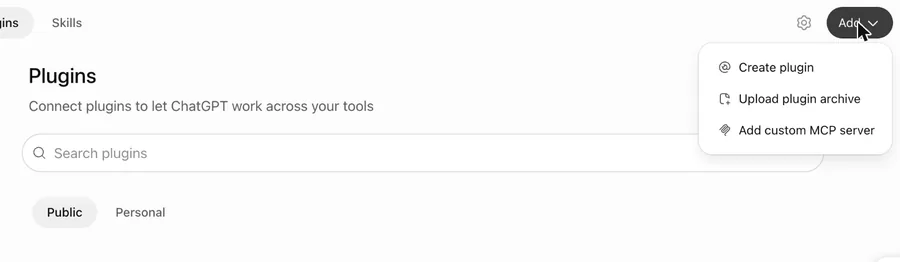
ChatGPT's Plugins page with the Add menu open on “Add custom MCP server”. -
Name it Santara AI, paste
https://mcp.santara.ai/mcpunder Connection → Server URL and keep Authentication: OAuth.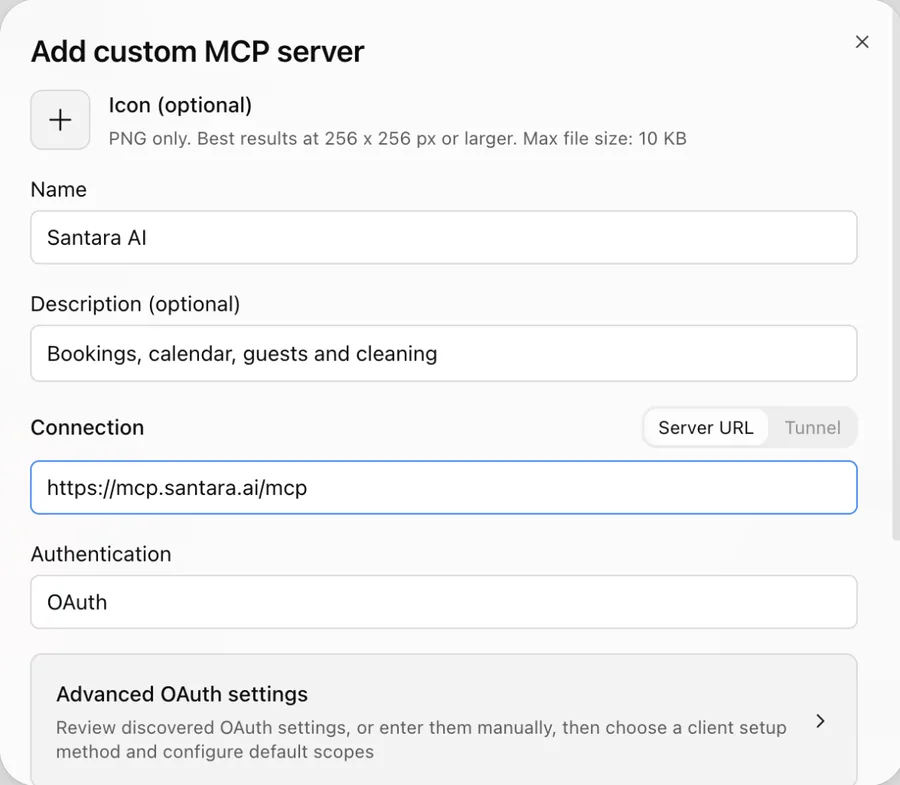
ChatGPT's “Add custom MCP server” form with Santara AI's name and server URL. -
There is nothing to set under Advanced OAuth settings — ChatGPT finds Santara AI’s sign-in and picks Client Identifier Metadata Document (CIMD) by itself.
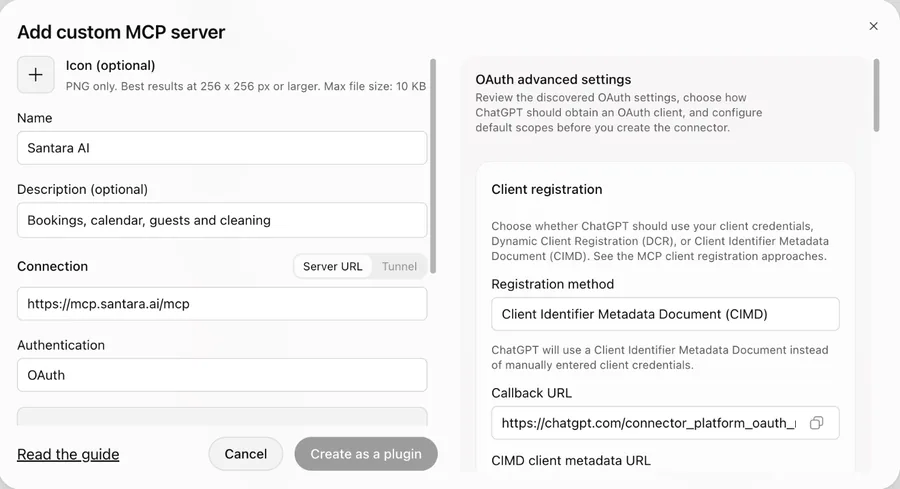
ChatGPT's advanced OAuth settings showing the CIMD registration method it chose on its own. -
Click Create as a plugin. Santara AI opens: sign in, pick the workspace and click Allow.
-
In a chat, add Santara AI from + → Plugins and ask away.
-
Go to grok.com/connectors and sign in to Grok.
Grok's Connectors page. -
Choose New Connector → Custom and paste
https://mcp.santara.ai/mcp. -
Santara AI opens: sign in, pick the workspace and click Allow.
Grok registers itself automatically, so for now it gets read-only access: it can answer questions but not change anything.
Other AI apps
Section titled “Other AI apps”Any app that speaks MCP works — Claude Code, Cursor, VS Code and more. They register themselves, so they also get read-only access.
claude mcp add --transport http santara https://mcp.santara.ai/mcpThe first time the app uses Santara AI, your browser opens to sign in and click Allow.
What an assistant may do
Section titled “What an assistant may do”ChatGPT and Claude are verified by their own web addresses, so they can do work for you. What runs on its own and what waits for your yes is up to you:
| Kind of change | Default | Examples |
|---|---|---|
| Calendar, tickets and cleaning | Runs at once | Block or open dates, open a ticket, assign a clean |
| Prices | Runs at once | Nightly rates, minimum stay |
| Messages to guests | Asks you first | Replies, upsell offers, review replies |
| Bookings and expenses | Asks you first | Create, change or cancel a reservation, add an expense |
| Billing, settings, team, channels | Never | No assistant can change these, ever |
An assistant can also never do more than your own role allows.
When it asks first
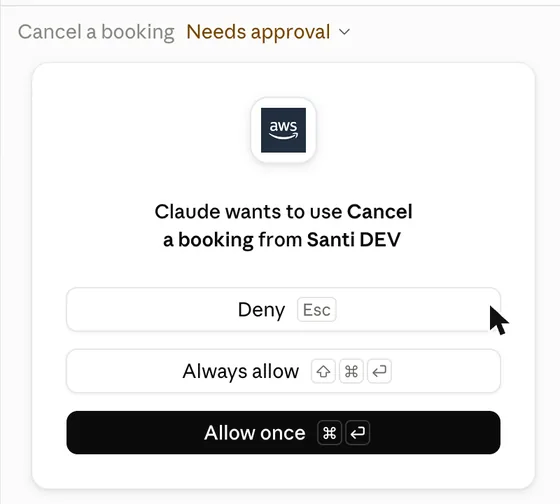
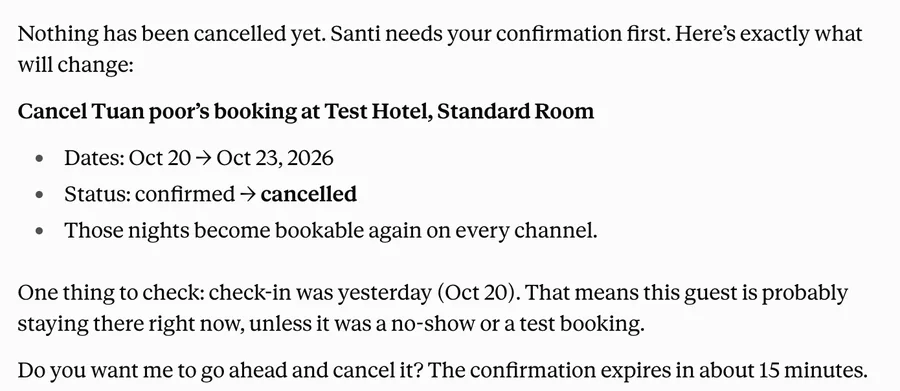
Section titled “When it asks first”The first time it tries, nothing changes. It shows you the exact change — the guest message word for word — and asks. Only after you say yes in the chat does Santara AI make it. Claude and ChatGPT also show their own Allow prompt before each Santara AI action.
Change what assistants may do
Section titled “Change what assistants may do”Open AI assistants in Santara AI. For each kind of change, choose Run on its own, Ask me in the chat or Not allowed. Only an owner or admin can change these. The same page lists everything each assistant did, and what it asked about.
Disconnect
Section titled “Disconnect”In Santara AI go to Settings → Channels → Apps and click Disconnect next to the assistant. Changes stop within seconds; anything it could read stops within ten minutes. Removing the connector inside ChatGPT or Claude also works, but only Santara AI’s list shows that the access is gone.
For developers
Section titled “For developers”The full tool reference — every tool, its parameters and what it does — is generated from the server itself at mcp.santara.ai/docs, and machine-readable at mcp.santara.ai/tools.json.
For AI tools: this page as markdown · llms.txt · llms-full.txt